HazardCo Alternative for SWMS
HazardCo is a healthy and safety system many homebuilders and traders from Australia and New Zealand use for Safe Work Method Statements (SWMS), and even toolbox talks, which conveniently comes with a site sign-in and advistory team on the phone. If your team is outgrowing using templates, here's how HazardCo compares with Dashpivot by Sitemate for SWMS.

Trusted by companies, projects and teams of all sizes















The short answer
The alternative for HazardCo for SWMS is Dashpivot by Sitemate, especially when you want your own format, and you want to keep them in the same place for inspections, quality checks and site records.
What HazardCo Is Built For
HazardCo is built for home builders and traders in Australia and New Zealand. Its main aim is to simplify health and safety for small business. You work through guided templates, generate a site-specific safety plan, sign people in with a QR code, and call the advisory team when you're unsure.
- Step-by-step SWMS templates
- Step-by-step toolbox talk templates
- Site-specific safety plan builder
- Site sign-in by QR code
- Incident reporting
- Health and safety advice over the phone from an advisory team
Why Teams Look for an Alternative
HazardCo is a good fit for small builders and the problems usually start as the business grows. The templates can’t be changed much, and safety is handled in one tool while inspections, quality and site reports are done in others, so a result, signed SWMS end up spread across several places.
- The templates are fixed, so it's hard to shape the SWMS around how your business works
- Safety is kept in a separate tool from quality, inspections and site records
- That means juggling more apps to cover everything
- The membership and advisory model is built for small builders and tradies, not around your own processes
The builder's got one app for the SWMS, another for inspections and a spreadsheet for the rest, and nobody's sure which one holds the signed copy.
What Dashpivot by Sitemate Is Built For
Dashpivot by Sitemate is a field system for building and signing off documents like SWMS, and for keeping the record afterwards. The SWMS is set up once in your own format and signed by the crew on site, then stored beside the rest of your site records.
- Your own SWMS format: from the template library or AI Templates
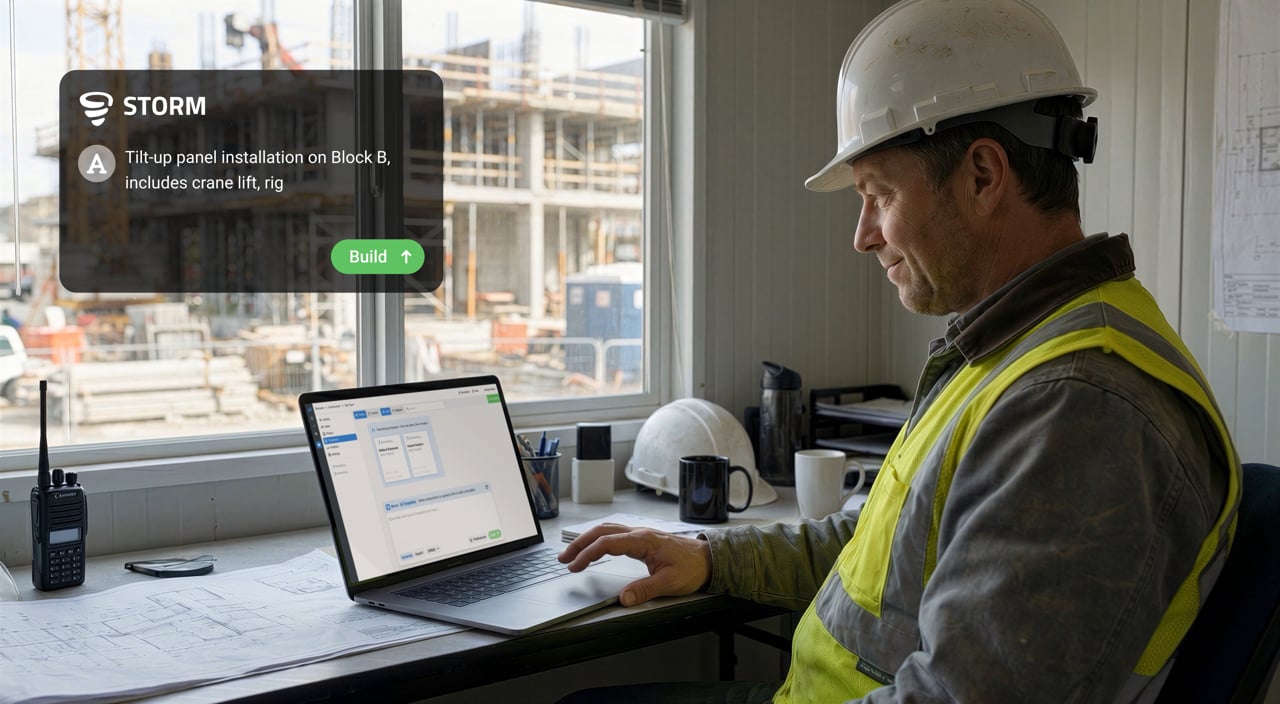
- Storm: Sitemate's data capture agent, which builds the template from an uploaded SWMS or a description, for you to check
- On-site sign-on: each worker recorded against the version they used
- One system: safety, quality and field reporting, with SWMS beside inspections and the site diary
- One register: every job and subbie, versioned with a full audit trail

Build and Sign SWMS in Dashpivot
Your crew fills in the SWMS as a Dashpivot form on the Sitemate Mobile App, in the format you already use. Each worker signs on the device and the record stays in your account.
Safe Work Method Statement App
Build the SWMS once from your own format, or have Storm draft the template with AI Templates. The crew signs onto it on site, and a supervisor checks and signs it off before work starts.

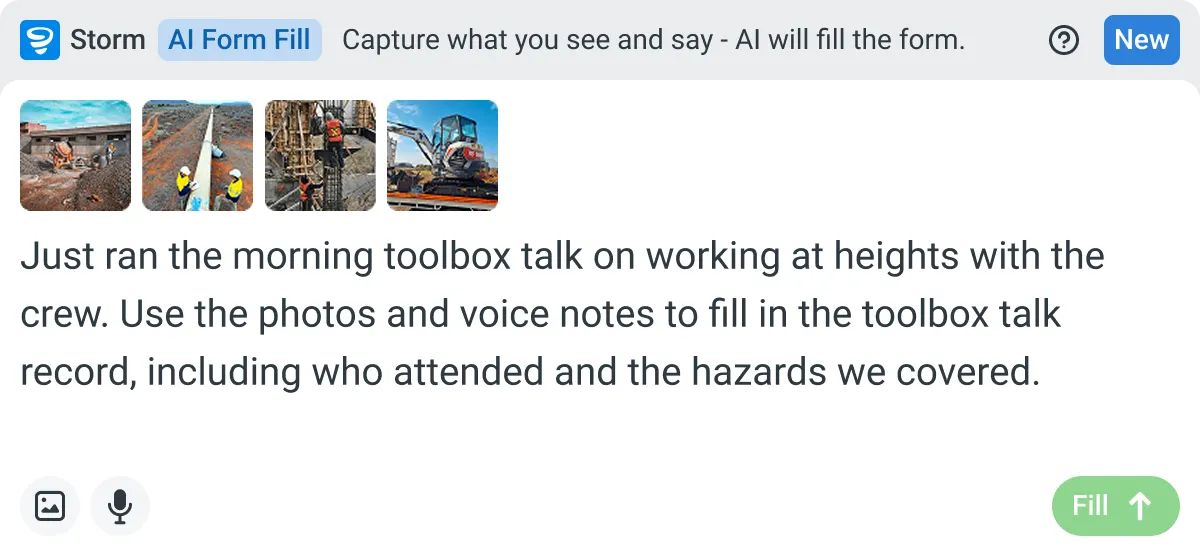
AI Form Fill
Capture what you see and say, and Storm drafts the form for you. The details land in the right fields, so there is a record to check the moment the work is done, and you review and submit it yourself.
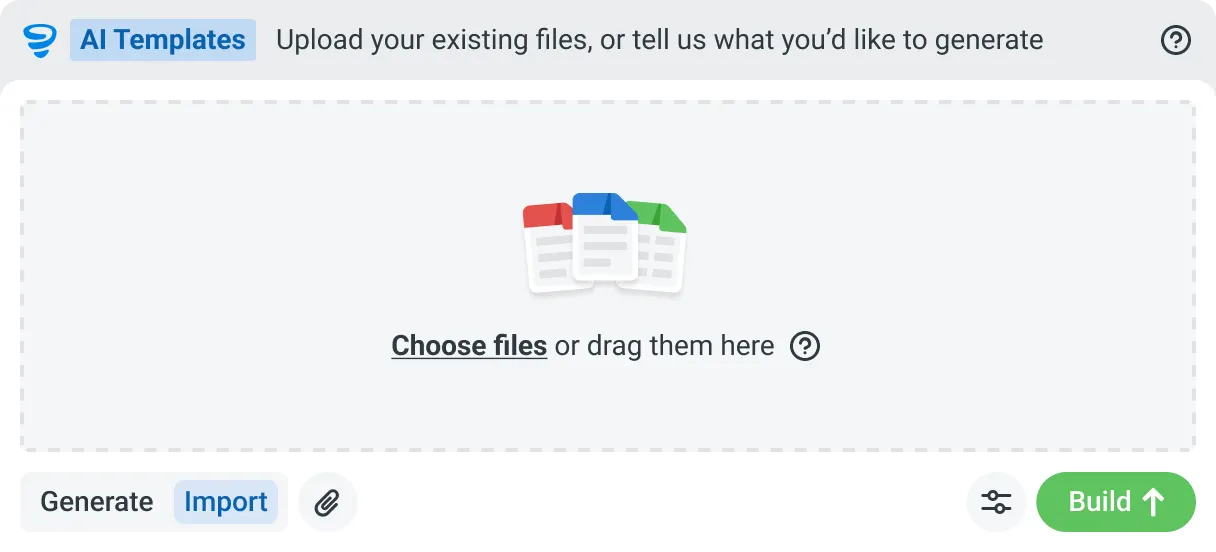
AI Templates
Describe the template you need in plain language, or upload an existing PDF, Word or Excel document. Storm builds the structure, with the right fields, sections, columns and workflow attached, and you review and refine it before you save.
How Dashpivot Runs a SWMS
It's three steps. You set the SWMS up once in Dashpivot and the crew completes it on the Sitemate Mobile App. The signed record files back into your own account.
-
Step 1
Get the Template
You don't start from a blank page. The SWMS template you already use becomes a Dashpivot form for the crew to sign, set up once in its existing format.
- Template library: start from a standard SWMS
- AI Templates: Storm builds the template from your PDF, Word or Excel SWMS, or from a description of the work
- Dashpivot editor: build it yourself, with photo, signature and location fields
-
Step 2
Run the SWMS and Sign On
Before work starts, the supervisor walks the crew through the SWMS on the Sitemate Mobile App. Any change made on site goes on the form instead of the margins of a printout.
- The crew signs on the device, with signatures on the form itself
- Site-specific controls added on the phone when the template didn't cover something
- Photos attached to the job step they relate to
- Works offline, so remote sites with no signal still end up with a signed SWMS
- Storm, if you want it: describe conditions by voice or photo and Storm fills the fields with AI Form Fill, then the supervisor checks before signing
-
Step 3
Keep the Record
The signed SWMS is filed against the job in your own Dashpivot account. It shows who signed what, ready for a principal contractor or the regulator.
- Every version of the SWMS, kept
- Which version each worker signed
- An audit trail of who edited it and who signed off
- A PDF export for the principal contractor, who doesn't need an account
What Dashpivot Doesn't Replace
Dashpivot handles the SWMS and stores the record, but it doesn’t assess the controls or provide legal sign-off. That job is for a competent person like a supervisor or safety officer or checker to review the SWMS and approve it.
What Dashpivot Does for SWMS Today
Here's what you can do with SWMS in Dashpivot now.
- Build SWMS templates in your own format, with job steps, hazards, risk ratings and controls
- Let Storm draft the template with AI Templates, then review and edit it
- Get the crew signed on site from any device, signal or not
- Save a master SWMS as an account template so every project uses the same version
- Keep every SWMS versioned in one register, ready for audit
Where Dashpivot Stops
Dashpivot is software only. Its limits are listed below, and the last one is something HazardCo does offer.
- It can't decide whether the controls are good enough; that's up to a competent person
- It doesn't provide legal or regulatory approval of a SWMS
- It doesn't include a health and safety advice line, which HazardCo does
Dashpivot by Sitemate vs HazardCo for SWMS
Both deliver the SWMS on a device and keep the record. The table shows where they differ, including the areas where HazardCo is stronger.
| Dashpivot by Sitemate | HazardCo | |
|---|---|---|
| Built around | Safety, quality and reporting in one system | Guided health and safety for home builders and tradies |
| SWMS templates | Your own format, the template library, or AI Templates | Guided templates with a fixed structure |
| Phone H&S advice | Not included | Included with the advisory team |
| Beyond safety | Quality, inspections and field reporting | Safety only, alongside other tools |
| Small builder setup | Set up once and reuse | Ready with very little setup |
| Best fit | Teams who want their own format next to their site records | Small builders and tradies who want minimal setup |
Where HazardCo and Dashpivot Differ for SWMS
Both replace paper SWMS and keep a record of who signed but the main differences are whose format the SWMS follows, and whether it sits alongside the rest of your site work.
- Your own SWMS format. Dashpivot follows the system you already use and changes as your business does. HazardCo's guided templates keep a set structure.
- One system beyond safety. Inspections, quality and site reports sit alongside the SWMS, so you're not switching between apps.
- Phone advice is HazardCo's strength. Its advisory team takes your calls. Dashpivot doesn't offer an advisory service.
- Storm drafts the template with AI Templates. Describe the work or upload your current SWMS, and the supervisor approves the draft before it's used.
Where HazardCo Is the Better Choice
HazardCo is a good fit for small builders who want health and safety sorted with very little setup because step-by-step templates are designed for exactly that.
- You want guided templates that are ready to go
- You want an H&S advisory team on the phone
- Your paperwork is all safety, so you don't need a broader system
How Teams Move From HazardCo
Nobody moves off HazardCo all at once, and the first step is deciding whether to move at all. Most teams that do start with the SWMS, then bring across inspections and other site records.
-
Step 1
Decide
Stay on HazardCo if its guided templates already fit how you work, or if you rely on its advisory team. Move if you want SWMS in your own format, kept alongside your site records.
-
Step 2
Convert
Upload your current SWMS as a PDF, Word or Excel file and Storm rebuilds it as a Dashpivot template with AI Templates. Check the job steps and controls before anyone uses it.
-
Step 3
Pilot
Pilot with one crew on one job. HazardCo keeps running in parallel, and nothing gets switched off while you test.
-
Step 4
Roll Out
Once a crew has signed a live SWMS end to end, save it as an account template and add the remaining jobs. From the first one, every SWMS sits in the one register.
Frequently Asked Questions
Is it HazardCo or Hazard Co?

It’s HazardCo, written as one word. People search for it both ways, but it’s the same product.
Is Dashpivot a replacement for HazardCo?
Yes, for SWMS and your other site forms. The one thing it doesn’t replace is HazardCo’s phone advisory team, which is included in its price. If your team uses that service a lot, weigh it up before you switch.
Can we keep our own SWMS format?
Yes. Upload your current SWMS as a PDF, Word or Excel file and Storm rebuilds it as a Dashpivot template with AI Templates, keeping your structure. Check the job steps and controls before anyone uses it.
Can a worker add a site-specific control on the phone?
Yes. The SWMS is a live form in the Sitemate Mobile App, so a worker can add a control on site before the crew signs. The supervisor reviews it, and the change is saved against that version.
Where does the signed SWMS end up?
It’s filed against the job in your Dashpivot account, versioned, with every signature attached. It’s there whenever a principal contractor or regulator asks, and it stays yours after the project closes.