The Site Book Alternative for SWMS
The Site Book (also known as SiteBook) is an Australian construction app that many builders use for QR inductions, sign-in and collecting Safe Work Method Statements (SWMS) from trades. If its templates are getting in the way of your SWMS, this page is for you.

Trusted by companies, projects and teams of all sizes


The short answer
Switch from The Site Book to Dashpivot by Sitemate for SWMS when the prebuilt templates stop working for you, usually because your SWMS needs to follow your own format and changes from job to job. If you mainly use The Site Book for inductions and sign-in and its SWMS side is fine, there's less reason to move.
What The Site Book Is Built For
The Site Book is an Australian cloud app built for builders to run the site day to day. Workers induct and sign in with a QR code, attendance is tracked automatically, and trade SWMS are collected and reviewed alongside the site diary and project documents.
- QR code site inductions
- Automatic attendance tracking
- Collecting and reviewing trade SWMS
- Site diary, photos and project documents
- Scheduling and project finance
Why Teams Look for an Alternative
Templates are the biggest sticking point. The Site Book uses prebuilt ones, and teams tell us it's hard to make them match their own SWMS format or their ISO system. Editing and sharing them internally is awkward too, so keeping SWMS up to date across projects becomes a manual chore.
Source: Sitemate sales calls mentioning The Site Book.
- Prebuilt templates that are hard to adapt
- Trouble uploading, editing and sharing SWMS internally
- Conflicts with ISO requirements
- Manual updates, one project at a time
- Harder to manage once you're running several projects
- Supervisors hesitant to use the induction workflow
Teams moving off The Site Book tell us the templates are where it pinches. Once the prebuilt SWMS stops matching how they work, adapting it and sharing it internally is hard going.
What Dashpivot by Sitemate Is Built For
Dashpivot by Sitemate is a field system for building and signing off documents like SWMS, and for keeping the record afterwards. You set a SWMS up once in your own format and the crew signs it on site, with each version filed against the job.
- Your own SWMS format: start from the template library, or have Storm, Sitemate's data capture agent, build it with AI Templates from an uploaded SWMS or a typed description
- One master SWMS: an account template edited centrally, so every project runs the current version
- On-site sign-on: each worker is recorded against the version they used
- Shared across the team: roles and permissions control who edits and who signs off

Build and Sign SWMS in Dashpivot
Your team builds the SWMS once as a Dashpivot form, in its own format. The crew completes and signs it on the Sitemate Mobile App on site, and the signed record stays on your own account.
Safe Work Method Statement App
Build the SWMS once from your own format, or have Storm draft the template with AI Templates. The crew signs onto it on site, and a supervisor checks and signs it off before work starts.


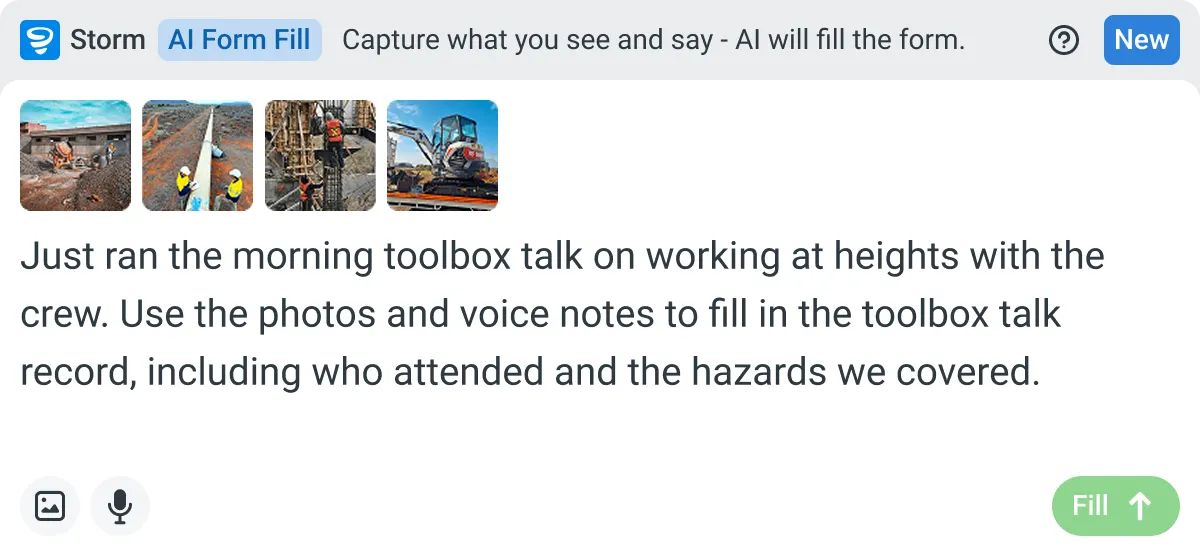
AI Form Fill
Capture what you see and say, and Storm drafts the form for you. The details land in the right fields, so there is a record to check the moment the work is done, and you review and submit it yourself.
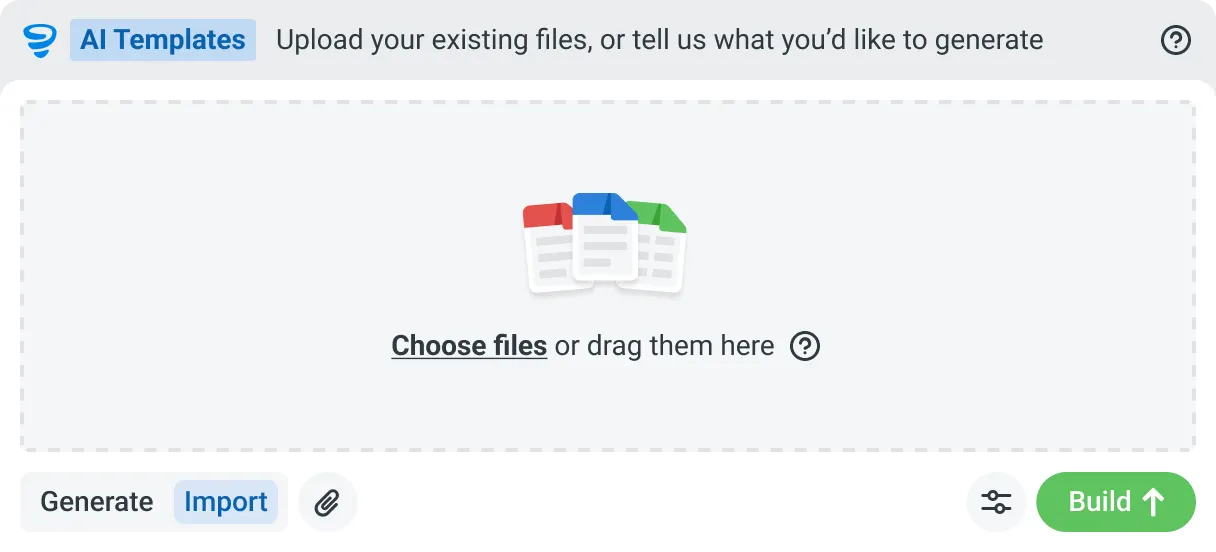
AI Templates
Describe the template you need in plain language, or upload an existing PDF, Word or Excel document. Storm builds the structure, with the right fields, sections, columns and workflow attached, and you review and refine it before you save.
How Dashpivot Runs a SWMS
There are three steps. You set the SWMS up once in Dashpivot, and the crew completes it on the Sitemate Mobile App on site. The signed record then lands in your own account, and it's yours.
-
Step 1
Get the Template
There's no blank page. Your SWMS template becomes the Dashpivot form the crew signs, set up once in the format your team already uses.
- Template library: a standard SWMS to start from
- AI Templates: Storm builds the template from your existing SWMS as a PDF, Word or Excel file, or from a description of the work
- Dashpivot editor: build it yourself, with fields for photos, signatures and location
-
Step 2
Run the SWMS and Sign On
Before work starts, the supervisor walks the crew through the SWMS on the Sitemate Mobile App. Any change on site goes straight onto the form, where it used to be a note in a printout's margin.
- Sign-on on the device: signatures go straight onto the form
- Site-specific controls: added on the phone when the template missed something
- Photos: attached to the job step they relate to
- Offline: a remote site with no signal still gets a signed SWMS
- Storm, if you want it: fills fields with AI Form Fill from a voice note or photo, and the supervisor checks before signing
-
Step 3
Keep the Record
The signed SWMS is filed against the job in your own Dashpivot account, showing who signed what, ready when a principal contractor or the regulator asks.
- Every version of the SWMS, kept on file
- Which version each worker signed
- An audit trail of who edited it and who signed off
- A PDF export for the principal contractor, who doesn't need a Dashpivot account
What Dashpivot Doesn't Replace
Dashpivot runs your SWMS and keeps the record. It doesn't judge whether your controls are adequate, and it isn't a legal sign-off. A competent person checks the SWMS against the work and signs it.
What Dashpivot Does for SWMS Today
Here's what's available now, focused on SWMS.
- SWMS templates in your own format, with job steps, hazards, risk ratings and controls
- Storm drafts the template with AI Templates, and you edit it before use
- Crew sign-on from any device, signal or not
- A master SWMS saved as an account template, so one change updates every project
- Every SWMS versioned in one register, ready for audit
Where Dashpivot Stops
These are the limits on the SWMS side. The last one is something The Site Book includes and Dashpivot doesn't.
- Judging whether controls are adequate, which is the competent person's call
- Acting as the legal or regulatory sign-off for a SWMS
- Project finance, which you'd keep in another tool
Dashpivot by Sitemate vs The Site Book for SWMS
Both take site safety paperwork digital and keep the records. Here's where they differ on SWMS, including where The Site Book leads.
| Dashpivot | The Site Book | |
|---|---|---|
| Built around | Field forms and records | Running the site for Australian builders |
| Scope | Safety, quality and site reporting | Inductions through to the site diary |
| Templates | Your own format, the template library, or Storm with AI Templates | Prebuilt, and reportedly hard to adapt |
| Sharing | Master account template with roles and permissions | Reported trouble editing and sharing internally |
| QR check-in | Inductions built as forms with a QR code | Purpose-built, with automatic attendance |
| Project finance | Not included | Included |
| Setup | Set up your SWMS once, in your format | One app, ready to go |
| Best fit | Your own SWMS format, signed on site | Sign-in, inductions and collecting SWMS |
Where The Site Book and Dashpivot Differ for SWMS
Both get SWMS off paper and record who signed. The difference is whose format you use, and how easily one update reaches every project.
- Your own SWMS format. Dashpivot builds from the SWMS you already have, so it matches your risk matrix and ISO system.
- One master SWMS, edited once. Update it in one place and every project gets the change.
- Storm drafts the template. Storm uses AI Templates to build it from a description or your current SWMS, and the supervisor approves it before use.
- The Site Book is stronger on sign-in and inductions. QR inductions with automatic attendance work out of the box, and that's why many builders chose it.
Where The Site Book Is the Better Choice
At the site gate, The Site Book is hard to beat. If you need QR inductions and sign-in with automatic attendance, and you mostly collect SWMS from trades, it does that with very little setup.
- You want QR inductions with automatic attendance, ready to go
- You mainly collect and review subcontractor SWMS
- You want scheduling and project finance in the same app
How Teams Move From The Site Book
Nobody moves everything off The Site Book at once, and the first step is deciding whether to move at all. Most teams start with the SWMS and keep inductions and sign-in in The Site Book for now.
-
Step 1
Decide
Stay with The Site Book if its inductions work for you and your SWMS fit its templates. Move if your SWMS has to follow your own format or be shared across the team.
-
Step 2
Convert
Upload the SWMS you run today as a PDF, Word or Excel file, and Storm rebuilds it as a Dashpivot template with AI Templates. Check the job steps and controls before it's used.
-
Step 3
Pilot
Pilot with one crew on one job. Inductions and sign-in stay in The Site Book, so nothing gets switched off while you test the SWMS.
-
Step 4
Roll Out
Once one crew has signed a live SWMS end to end, save it as an account template and add the remaining jobs. Every SWMS sits in one register from the first one on.
Frequently Asked Questions
Is The Site Book the same as SiteBook?

Yes. It trades as SiteBook, but many builders call it The Site Book. This page covers both.
Is Dashpivot a replacement for The Site Book?
For SWMS, yes. You build the SWMS in Dashpivot, the crew signs it there, and the record stays against the job. The Site Book also includes inductions, attendance, scheduling and project finance, so a full replacement depends on which of those you use.
Can we keep our own SWMS format?
Yes. Upload your current SWMS as a PDF, Word or Excel file and Storm rebuilds it with AI Templates, keeping your structure. Check the job steps and controls before you use it.
Can a worker add a site-specific control on the phone?
Yes. The SWMS is a live form in the Sitemate Mobile App, so a worker can add a control on site before the crew signs. The supervisor reviews it, and the change is saved against that version.
Where does the signed SWMS end up?
It’s filed against the job in your Dashpivot account, versioned, with every signature attached. It’s there whenever the principal contractor or regulator asks, and it’s yours after the project ends.