Construction AI Photo Documentation App
Your crew takes photos all day, and most of them sit in camera rolls until a claim or a client question has someone scrolling for ages. A construction AI photo documentation app makes those photos useful the moment they're taken. Snap a photo, add a quick voice note if needed, and Storm drafts the site diary or defect entry. The supervisor checks and signs before it's filed.

Trusted by companies, projects and teams of all sizes


The short answer
A construction AI photo documentation app reads the photos your crew takes on site and drafts the written record. Storm fills in the site diary, defect or progress entry, adds location and weather, and uses any voice note to fill in what the photo can't show. The supervisor checks each draft against its photo, corrects it and signs before it's filed.
The Photo Is Not the Problem, the Writing Up Is
A construction AI photo documentation app turns the photos your crew takes on site into written records. You take the photo, add a voice note if it helps, and Storm drafts the site diary entry, defect record or progress report from it. The supervisor checks and signs before anything goes to management or the client. The photos end up in the record of the job, tagged to the site, so they're there when a variation claim or a client question comes up.
- Reads site photos and voice notes from the crew's phone
- Drafts the site diary, defect or progress entry
- Adds the location and weather to each entry
- Works offline and syncs when the signal's back
- The supervisor reviews and signs every entry before it's filed
Why Software Couldn't Read a Site Photo Before
Crews have always taken site photos, but until recently software couldn't read one. Someone had to look at each picture, work out what it showed and type it into the site diary or defect list, usually at the end of the day and often days later. Storm can now read what's in the photo and pull it into the right fields, so the photo becomes the entry itself and the supervisor checks it.
Why Site Photos Never Make It Into the Record
Site photos have a habit of disappearing into camera rolls. That night, someone has to scroll back through and work out which level, which pour and which day each one belongs to. Usually it's the supervisor, writing the site diary from memory at the kitchen table. Weeks later, a variation claim comes in, and the photo that would prove it has no date, no site and no note.
How an AI photo documentation app works
The steps follow the order the work already happens in on site. The photo comes first and the written entry is drafted from it, then a person checks the entry before it reaches the office or the client.
-
Step 1
Take the photo where the work is
The crew member photographs the work, the defect or the delay on their phone, and can add a short voice note if the picture needs context. It works without signal, so a photo taken in a trench or a basement syncs once they're back in range.
-
Step 2
It comes back as a site diary entry
Storm drafts the entry from the photo and the voice note, filling the fields in your own site diary, defect or progress form. The site, date and weather are already on it, so nobody's retyping them later.
-
Step 3
You check it and file it
The supervisor reads the drafted entry against the photo, fixes anything Storm got wrong and signs it. Only then does it go into the register, the weekly report or the client update. If it hasn't been signed, it doesn't get filed.
What crews capture this way
A crew member takes the photo they'd take anyway and adds a line by voice if it needs one. Storm fills the site diary, defect record or progress report from it, with the location and weather already on the entry. The supervisor reviews it the same afternoon, while the job's still fresh in their head.
- Site diary entries built from the day's photos and a voice note
- Defects photographed where they're found, tagged to the location
- Progress photos that feed the client update and the monthly claim
- Dilapidation reports with condition photos taken before work starts
- Delays and weather on the day, with the photo that shows them
- Daily reports filled in offline and synced later
What to Look for in an AI Photo Documentation App
Try it on photos from one of your own jobs before anything else. Check whether the draft gets the trade terms right, whether it writes into the forms your team already fills in, and how easy it is for a supervisor to correct an entry before signing. Ask what happens with no signal, because a lot of the photos you need get taken where there isn't any.
- Drafts into your existing site diary and defect forms
- Gets trade terms and document names right from the photo
- Lets the supervisor edit any field before signing
- Keeps every photo attached to the entry it belongs to
- Works offline in trenches, basements and out of range
- Tags each entry to the site it was taken on
- Lets you pull up past entries by site or job in seconds
What to avoid
Steer clear of anything that files a record nobody has read. A photo can look like it shows a finished pour when it doesn't, and a wrong entry in the site diary is hard to walk back once a claim depends on it. Avoid tools that keep photos in their own gallery, away from the report they belong to.
- Records filed without a supervisor's review and signature
- Photos stored apart from the entry they belong to
- Apps that stop working when the signal drops on site
- Captions that guess at what the photo shows
- A separate app the crew has to learn just for photos
- Weekly reports merged by hand from the daily ones
Nothing Is Filed Until a Supervisor Signs It
Storm reads what's in the photo and what the crew says about it, which covers a lot of what goes into a site diary or defect entry. What it can't see is what happened off camera. The supervisor knows whether the pour ran late because of the truck or the rain, and a quick voice note is how that detail gets in. If nobody mentions it and the photo doesn't show it, the entry will either leave it out or get it wrong. That's why every draft is checked against its photo before it's signed. The lists below show where Storm saves your team time and where they'll still need a careful look, which matters when these records might end up backing a claim or a client report.
What it can do today
Storm works from the photos and voice notes your crew captures on their phones, with or without signal. It writes the entry straight into the site diary, defect and progress forms your team already uses in Dashpivot, ready for the supervisor to sign.
- Fills site diary, defect and progress entries from a photo
- Puts voice note details into the right fields
- Adds location and weather to every entry
- Keeps each photo attached to the entry it supports
What it cannot do
Storm only knows what's in the frame and what the crew tells it. It won't know the reinforcement was inspected before the pour unless someone photographed it or mentioned it. And it can't sign anything, so the supervisor still reviews every entry and puts their name to it.
- See behind formwork, lining or backfill
- Confirm the work meets the spec or drawings
- Know who was on site unless someone records it
- Sign off an entry for the supervisor
How the record gets there
Storm reads the photo and drafts the entry. Dashpivot is where that entry lives as a signed record, and Sitemate MCP lets the office reach it from AI assistants like Claude or ChatGPT. There's a person at each end, from the crew member who took the photo to the supervisor who signs it off.
-
Storm
Storm reads the photos and any voice note from site, works out what they show and fills the right fields in the site diary or defect form with AI Form Fill. Nothing is filed until someone has checked it.
-
Dashpivot
Dashpivot holds the forms your team already uses. The drafted entry lands there with its photos, location and weather, the supervisor reviews and signs it, and it sits in the register for that site.
-
Sitemate MCP
Sitemate MCP connects those records to AI assistants like Claude, ChatGPT and Copilot. Someone in the office can ask for last week's open defects on one site and get answers drawn from the signed records in Dashpivot.

Document Site Photos With Storm in Dashpivot
The agent behind your photo records is Storm, Sitemate's data capture agent for the front line of the built world. Photos and voice notes go in. Structured, auditable records come out once a supervisor checks and signs them, built for the conditions where most software fails.

AI Form Fill
Capture what you see and say, and Storm drafts the form for you. The details land in the right fields, so there is a record to check the moment the work is done, and you review and submit it yourself.

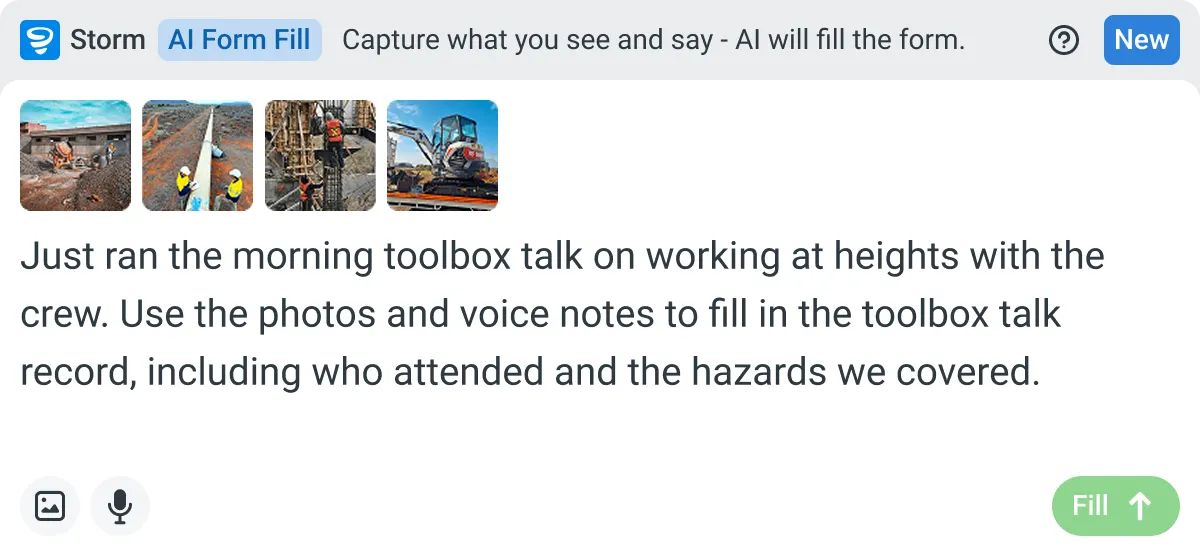

Listens to the work
Captures voice cleanly through machinery, wind, and movement. Accents and trade language understood. No headset needed.

Sees the site
Photos read as primary data, not attachments. Equipment, defects, PPE, and conditions are all interpreted directly from what's in frame.

Knows the context
Location, time, crew, plant, and materials pulled automatically. Critical for inspections, incidents, and time entries.
Frequently Asked Questions
Does it work with no signal on site?

Yes. Your crew can take photos and record voice notes in a trench or basement, and everything syncs once they’re back in range. The draft waits for the supervisor to review and sign.
Is the drafted entry ready to send to the client?
No, it’s a first draft. The supervisor checks it against the photo, corrects anything Storm got wrong and signs it. Only signed entries go into the register or client updates.
Can it fill in our own site diary form?
Yes. Storm fills in your existing Dashpivot forms with AI Form Fill. If your site diary is still a PDF, Word or Excel file, Storm can turn it into a Dashpivot template with AI Templates first, and you check the template before the crew starts.
Can I pull up photos and entries by site?
Yes. Every signed entry is filed against its site in Dashpivot with the photos attached, so you can open one job and see its full history. No more scrolling through camera rolls to find the photo behind last month’s delay.
What happens if Storm reads a photo wrong?
The supervisor catches it at review. A photo might look like a finished pour when it isn’t, so they compare the draft with the picture, fix any errors and only then sign. Nothing is filed until they do.