How to use Claude to run analysis of Toolbox Talk attendance
Every Toolbox Talk your crews run is already recorded somewhere: the topic, the date, the crew, and the sign-on that says who was there. You already know who attended each talk. The work is reading back across dozens of them to see the pattern. Connect your project to Claude, write the prompt once, and it pulls the attendance picture back for you to check and act on.

 Claude
Northgate Stage 2, last 13 weeks. 47 Toolbox Talks, average 6 sign-ons each.
- Three crew signed on to fewer than half: J. Reyes (5 of 47), M. Okafor (9), D. Nguyen (11)
- Two talks have no sign-on recorded at all, both week ending 22 August
- Working at heights ran twice, turnout down from 11 to 4 the second time
Want the full list by crew?
Trusted by companies, projects and teams of all sizes















The short answer
Connect your Dashpivot project to Claude, name the crew or the date range, and it reads across your Toolbox Talks to show who signed on, who's been missing, and which talks had the lowest turnout. You check the answer against the records, then follow up.
How to get Claude running analysis of your Toolbox Talk attendance
Three things have to be true before Claude can read your attendance. Two of them are about your records rather than the assistant, and they're the ones people skip.
-
Step 1
Get the talks onto digital forms
The Toolbox Talk has to be captured on a form with a consistent attendee sign-on, the same fields every time. A photo of a paper sign-in sheet is a picture to an assistant, not a record it can read.
-
Step 2
Build up enough talks to read back over
One talk answers nothing. The pattern shows up once there are weeks of talks against the same crew or project, because that's when a run of missed sign-ons or a thin turnout becomes visible.
-
Step 3
Connect Claude over MCP
With the records in place, your assistant needs a way to reach them. That's what MCP does: it lets an assistant query a system it doesn't own, using the permissions you already have. Depending on which system you use, the process may vary. We cover Sitemate MCP later in this article.
Prompt guidance for Toolbox Talk attendance analysis with Claude
The prompt is the thing worth building, not the conversation around it. Get it right once and it becomes your attendance prompt, where only the dates or the crew change. One rule matters more than the rest: it queries one form template at a time, so name the exact template, the project and the dates.
- "What workspaces do I have access to? List the projects and teams."
- "What form templates are available in [team name]?"
- "Pull the [exact Toolbox Talk template name] forms for [project] between [date] and [date]. Put each one in a table with the date, the topic and the number of attendees who signed on."
- "From those, tell me which talks had the lowest turnout, and list anyone who signed on to fewer than half of them."
- "Same prompt, new dates: [project], [start] to [end]. Flag any talks with no sign-on recorded at all."
Troubleshooting prompts for Toolbox Talk attendance analysis
A thin answer is usually a thin record rather than a bad prompt. The sign-on is the source, so these fixes are about what the form holds, in the order worth trying.
- Attendance comes back empty: the talk has no sign-on field, or it's a free-text name box rather than a signature. Add a signature or attendee field to the template
- The count looks low: only the people who signed the tablet are counted, so ask the crew to sign on rather than one person signing for the group
- Nobody's name resolves: attendees are typed as free text, so spellings vary. A register or a picklist fixes it
- Whole talks are missing: those talks were captured on a different template, so query each template separately
- It can't compare crews: the crew or project isn't recorded on the form, so there's nothing consistent to group by
Limitations
The risk is a confident number built on a form that only some of the crew signed, read as if it were the whole story.
What it can do today
Connected to your workspace, this is what it can actually reach.
- Read the Toolbox Talks, sign-ons and registers you already have access to
- Count who signed on to each talk, and read it back by crew, project or date
- Show which talks ran thin and who's been missing across a run of them
- Work inside your own permissions, so connecting it widens nobody's access
What it cannot do
These limits are the point. An attendance figure that reads well and is wrong is worse than a thin one that's right.
- Count anyone who was there but never signed on. It reads the record, not the room
- See talks captured on paper or in a photo. Those aren't records it can read
- Change your records. It reads them, it doesn't write to them
- Decide who to follow up with. It surfaces the gap, you act on it
What this assumes you already do
This page assumes the talks already exist somewhere. Claude is reading attendance from records your crews have already signed, so if the sign-ons are patchy the picture will be too. Nothing here's a setup step, it's the working habit the analysis is built on.
- Your crews already run Toolbox Talks and sign on to them, most weeks
- The talks land against the same crew or project each time
- The person reading the answer knows which crews were actually on site
Why run Toolbox Talk attendance analysis with Claude
Tracking who attended which Toolbox Talk by hand means opening every form and tallying the sign-ons yourself. None of it is a mystery: it's all recorded somewhere, in the sign-on on each talk, the topic, the date, the crew. The answer to who's been missing is sitting in the records already.
Reading it back is what takes the time. To see a pattern you open one talk, then the next, then thirty more, and hold the count in your head. Someone who missed four talks in a row looks the same as someone who missed one, until you line them all up. That lining-up is the work, and it's the part nobody has time for on a busy site.
What a good attendance analysis covers
A good read of Toolbox Talk attendance tells you who's turning up, who isn't, and where the record itself is thin. Most cover the same ground:
- Turnout per talk, and how it trends over the weeks
- Who signed on to most talks, and who's been missing
- Talks with no sign-on recorded at all
- Crews or projects running below a weekly cadence
- Where the gap is a real absence versus a missing record
The incident review asks who was briefed on working at heights that month. The talks all ran, the crew remembers them, and the sign-on sheets are in a folder somewhere across three different sites.
Connecting Sitemate MCP to Claude
Three steps, and the first one isn't in Claude. An Org Controller has to switch MCP access on in Dashpivot before the connector will authenticate for anyone.
-
Step 1
Turn on MCP access in Dashpivot
An Org Controller opens Settings, then Security, and sets the MCP Access toggle to anything other than None. Save changes. Until this is on, the connector won't authenticate.
-
Step 2
Add the Sitemate connector in Claude
In Claude, go to Settings, then Connectors, then Add and Browse connectors. Search for Sitemate, pick the connector tagged Community, and click Connect. Sign in with your Sitemate credentials and approve access when prompted.
-
Step 3
Pick it in a chat
Start a new chat, click the plus button, open Connectors and select Sitemate. What you can read is whatever your Dashpivot permissions already allow, so connecting Claude doesn't widen anyone's access.
If the connector will not appear
Three things account for almost every failed connection, and the first is the most common by a distance.
- Nothing connects at all: MCP Access is still off in Dashpivot, and only an Org Controller can turn it on
- Sitemate isn't in the connector list: search "Sitemate" exactly, and look for the Community tag
- The connector doesn't show in a chat: start a new chat, click the plus button, and pick it under Connectors
How the record gets captured
A good answer is only as good as the sign-ons behind it, so it's worth seeing how they get captured in the first place.
-
Storm captures it on site
The talk and its sign-on get captured while the crew is standing there, on a phone or tablet, rather than written up on a sheet that has to be chased later.
-
Dashpivot holds it as the record
Each talk lands against its project as a structured record, with the sign-on attached, which is what makes a run of them countable rather than a folder to dig through.
-
Sitemate MCP reads it back
Connecting Claude to Dashpivot is what lets it answer from your own sign-ons instead of the internet. Your own permissions still apply.

Storm fills the records Claude reads
An attendance answer is only as good as the sign-ons behind it, and the gaps are almost always the talks nobody logged. Storm captures the talk and its sign-on as it happens, on site, so the record is there before anyone goes looking for it.

AI Form Fill
Capture what you see and say, and Storm fills the form for you. The details land in the right fields automatically, so a complete record exists the moment the work is done.

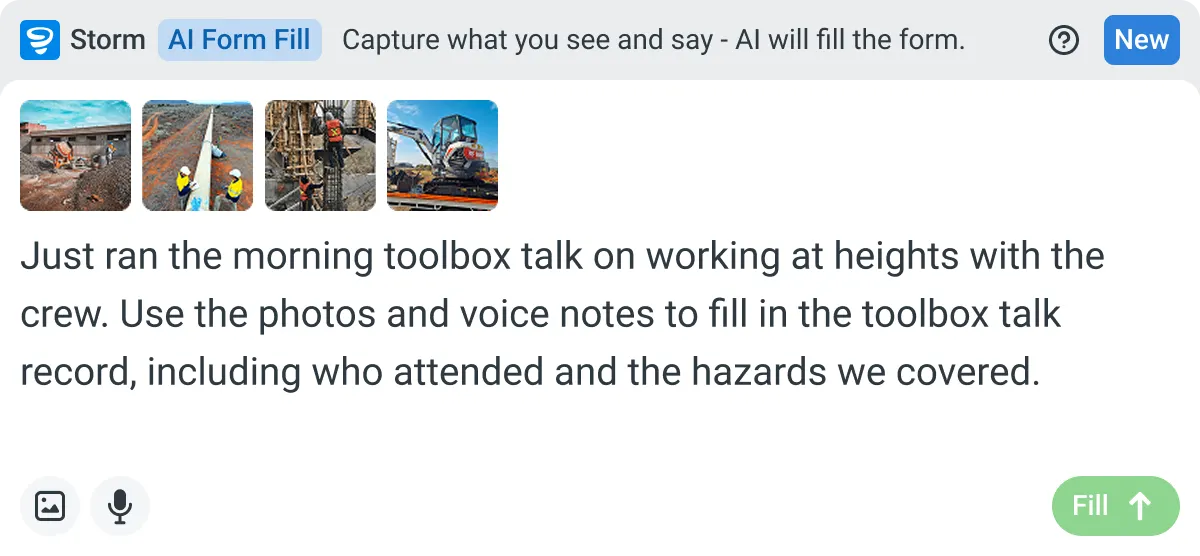

Listens to the work
Captures voice cleanly through machinery, wind, and movement. Accents and trade language understood. No headset needed.

Works on site
Built for gloves, cabs, and screen protectors. Captures inputs offline and processes in the background. No waiting on the field.

You stay in control
Storm never commits a record on its own. Every output is a draft for human review. Admins control what Storm can write to.
Frequently Asked Questions
Can Claude actually see my Toolbox Talk records?

Once your Dashpivot workspace is connected, yes. Claude reads your projects, folders, forms and the talks inside them directly, including the sign-on on each one, rather than working from whatever you remember to paste into the chat.
Does it count who was actually there?
It counts who signed on. If someone attended but never signed the form, they aren’t in the record, so they won’t be in the count. The sign-on is the source, which is why a consistent sign-on field matters more than the prompt.
What can it see, exactly?
Your workspaces and projects, the folders and templates inside them, the Toolbox Talks and their records, the sign-ons and your register lists. It reads what’s there. It doesn’t invent attendance that was never recorded.
Does this work with ChatGPT and Microsoft Copilot as well?
Yes. The same connection supports Claude, ChatGPT and Microsoft Copilot, so this method holds whichever assistant your team already uses.
Can it see data it shouldn't?
No. Every request is checked against your own workspace permissions, so Claude only ever sees what you can already see. Connecting Claude doesn’t widen anyone’s access.
What if the talks are on different templates?
Query each template separately. An assistant reads one form template at a time, so ask for each Toolbox Talk template on its own and line the answers up.
 English (United States)
  English (Australia)
  English (UK)
  English (New Zealand)
  English (South Africa)
  German