Procore Alternative for SWMS
Procore is the big enterprise platform for drawings, financials and project controls, and on many head contractor jobs the Safe Work Method Statement (SWMS) gets stored there as well. This page is about the SWMS your crew actually fills in and signs on site, and which tool handles that best.

Trusted by companies, projects and teams of all sizes


The short answer
Dashpivot by Sitemate is a Procore alternative for SWMS. It's worth switching if your crew won't use Procore forms on their phones, or if you're paying for a whole platform and only using a small part of it. If Procore runs the entire project and your crews are happy using it, stay put.
What Procore Is Built For
Procore is enterprise project management for head and general contractors who run the whole job from the office. Drawings, documents and financials are its strong suit, which is why large contractors choose it when they want everything in one place. Subcontractor SWMS often get stored there too.
- Drawings and document management on large projects
- Project financials and controls
- One platform for the head contractor and project teams
- Widely used by general contractors and enterprise builders
Why Teams Look for a Procore Alternative
Procore wasn't built for a crew standing around a phone at the pre-start, working through a SWMS together. When high-risk work is about to begin, the last thing anyone needs is an enterprise platform between them and a signature.
- Mobile field forms are fillable PDFs, which crews find slow and clunky
- Buyers say the platform is overcomplicated
- Low field adoption, and some rollouts fail outright
- Enterprise pricing, even when teams use just one module
Teams tell us Procore is powerful for running the project but heavy for field forms, with safety paperwork handled as fillable PDFs that are hard to complete on a phone.
What Dashpivot by Sitemate Does for SWMS
Dashpivot by Sitemate is a mobile-first field system, and the SWMS is one of the forms it runs. You build the SWMS once. The crew fills it in and signs on site, and every version is filed against the job on your own account.
- Master SWMS: one template used on every job
- Live phone form: works online or offline, in place of a fillable PDF
- On-site sign-on: digital signatures, plus QR check-in on the Sitemate Mobile App
- One system: quality, site records and safety in the same place

Write and Sign SWMS in Dashpivot
The crew fills in the SWMS on site as a Dashpivot form on the Sitemate Mobile App, in place of a fillable PDF. Each person signs the version they're working to, and the record stays on your own account.
Safe Work Method Statement App
Build the SWMS once and run it on every job. Storm, Sitemate's data capture agent, can draft the first version from the work scope for a supervisor to check, the crew signs on from their phones, and every signed version is filed against the job.


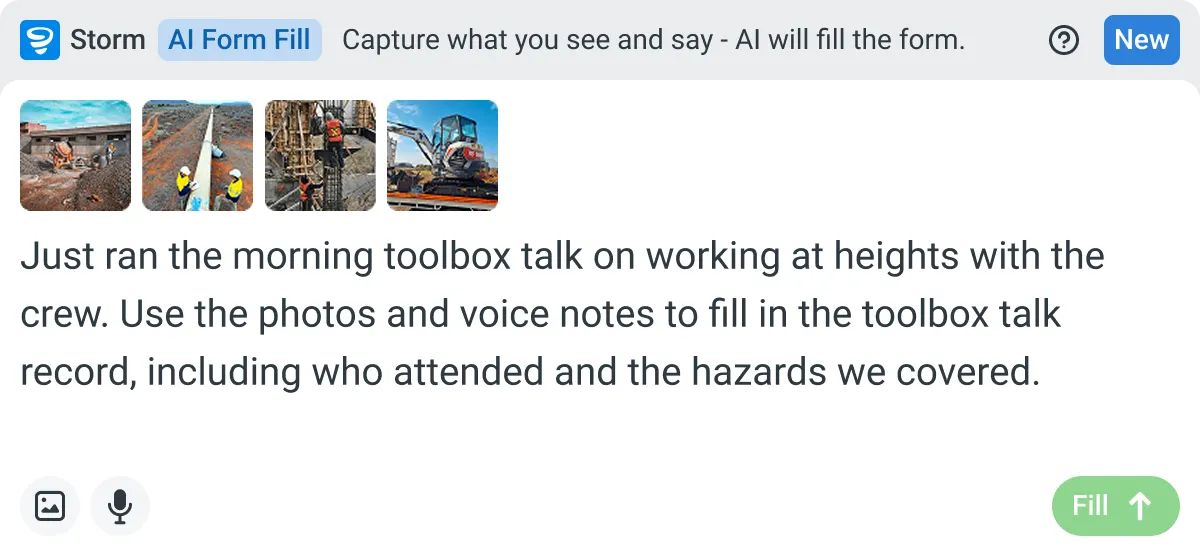
AI Form Fill
Capture what you see and say, and Storm drafts the form for you. The details land in the right fields, so there is a record to check the moment the work is done, and you review and submit it yourself.
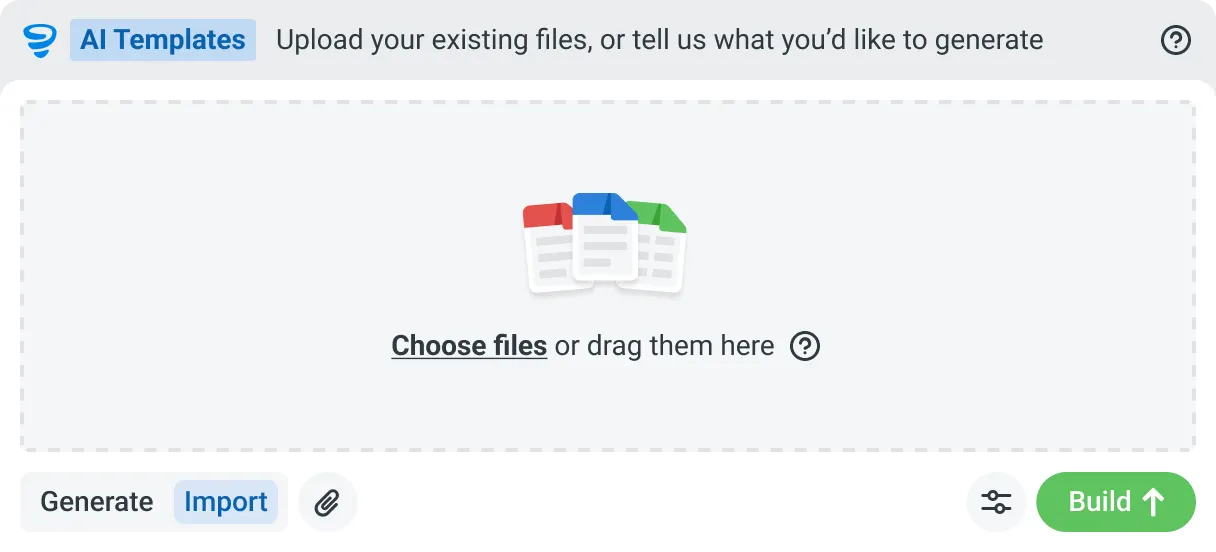
AI Templates
Describe the template you need in plain language, or upload an existing PDF, Word or Excel document. Storm builds the structure, with the right fields, sections, columns and workflow attached, and you review and refine it before you save.
How a SWMS Runs in Dashpivot
You set the SWMS up once in Dashpivot. The crew signs it on site before work starts, and the signed version is filed against the job on your own account.
-
Step 1
Set the SWMS Up Once
Start from the SWMS format you already use. The risk matrix stays as it is, and so do the job steps your principal contractors have accepted. It becomes the form every job runs from.
- AI Templates: Storm, Sitemate's data capture agent, builds the template from your SWMS as a PDF, Word or Excel file, or from a description you type. You review it before it's live
- Drag-and-drop editor: build it yourself in Dashpivot, adding signature, photo and location fields as needed
-
Step 2
Run It and Sign On
The supervisor briefs the crew on site with the form open on the Sitemate Mobile App, online or offline. If the job throws up something the SWMS didn't cover, they add a site-specific control on the phone before anyone starts.
- Digital signature: each crew member signs on the device
- QR check-in: workers scan in with their Sitemate ID
- Photos: attached to the job step they belong to
- Storm, optional: speak the scope and Storm drafts the job steps, hazards and controls
- Supervisor check: edits the site-specific details and signs before work starts
-
Step 3
Keep Every Version
Each signed SWMS is timestamped and filed against the job, with every version kept for audit. The record stays on your own Dashpivot account after the job closes.
- Version history: who changed each SWMS and who signed it
- One register: every SWMS across your jobs and subcontractors
- PDF export: to file with the head contractor
- Excel export: for your own reporting
What Dashpivot Doesn't Replace
Dashpivot doesn't replace most of Procore. It runs the SWMS and keeps the field record, with no drawings or project financials. It also can't judge whether your controls are adequate, so a competent person still signs off.
What Dashpivot Does for SWMS Today
Here's what's available now.
- SWMS templates with job steps, hazards, risk ratings and controls
- Storm drafts the first version from your work scope for the supervisor to review
- Crew sign-on from any device, even offline
- Every SWMS in one versioned, audit-ready register
- PDF or Excel exports for the head contractor or your own records
Where Dashpivot Stops
Running the whole project is Procore's territory, and it does that better.
- Managing drawings or project documents
- Project financials and controls
- Replacing the head contractor's record for the whole project
Procore vs Dashpivot by Sitemate for SWMS
Here's how the two compare on SWMS, including where Procore is stronger.
| Procore | Dashpivot by Sitemate | |
|---|---|---|
| Built for | Enterprise project management across drawings, documents and financials | Field records for safety, quality, reporting and plant |
| SWMS on the phone | Fillable PDFs that are clunky on mobile | A live mobile form that works online or offline |
| Drawings and financials | A core strength | Not covered |
| Rollout | Implemented across the whole platform | Start with one crew on one job, alongside your current tools |
| Best fit | Head contractors running the whole project | Crews and subcontractors signing SWMS on site |
Where Procore and Dashpivot Differ for SWMS
Both store the SWMS against the project. The difference is the experience on the phone, and how much platform you need just to get a SWMS signed.
- On the phone. Procore uses fillable PDFs. Dashpivot gives you a live form that works offline.
- Footprint. Procore is a whole-project platform. Dashpivot can run for one crew on one job.
- Project depth. Procore wins here, with drawings, documents and financials in one place.
Where Procore Is the Better Choice
For head contractors running the full project, Procore's depth is a real advantage. It's well established with general contractors and enterprise builders, and that's where it fits best.
- You're a head contractor using Procore's drawings, documents and financials together
- Procore is already rolled out and your crews are using its forms
- Your contract requires the SWMS to sit alongside drawings and commercial documents
How Teams Move From Procore
Most teams don't leave Procore. They move the SWMS on a single job first, and the project stays in Procore.
-
Step 1
Decide
Procore is the better tool if it runs the whole project and your crews already fill in its forms. Move the SWMS if crews are abandoning its slow mobile form on the phone.
-
Step 2
Convert
Upload one job's SWMS as a PDF, Word or Excel file. Storm rebuilds it as a Dashpivot template with AI Templates, keeping the risk matrix and wording. You check it first.
-
Step 3
Pilot
Go live with one crew on one job while Procore keeps running the project. The signed SWMS goes to the head contractor as a PDF, so nothing they depend on changes.
-
Step 4
Roll Out
Once one crew has signed a live SWMS end to end, save it as an account template and add the remaining jobs. Every SWMS then sits in one register.
Frequently Asked Questions
Is Dashpivot a replacement for Procore?

Not overall. Drawings, financials and project controls stay in Procore. What teams move to Dashpivot is the SWMS their crew fills in and signs on site.
Can we use both?
Yes, many teams do. The project runs in Procore and the SWMS runs in Dashpivot. Once it’s signed, the SWMS goes out as a PDF to wherever the head contractor needs it.
Why do crews struggle with SWMS in Procore?
Procore’s mobile forms are fillable PDFs. They’re slow to complete on a phone, so crews tend not to use them.
Do we have to use Storm to write the SWMS?
No. A SWMS in Dashpivot is a form you can fill in yourself. If you want a head start, Storm, Sitemate’s data capture agent, drafts the job steps, hazards and controls from the work scope or a voice note. A supervisor or competent person reviews and signs it before it’s issued.
Can the whole crew sign onto the SWMS?
Yes. Each worker signs on the device before work starts. They can also check in by scanning a QR code with their Sitemate ID, which is their worker profile in the Sitemate Mobile App.