How to use Microsoft Copilot to review RAMS
A principal contractor or safety lead can end up with a stack of subcontractor RAMS to check before work starts, each one 30 pages, and no easy way to see which are thorough and which are generic. Microsoft Copilot reads a RAMS you paste or upload and gives you a structured review: what's missing, where a hazard has no control, where the method is vague. You still own the sign-off, but you get through the stack faster and catch the gaps that matter.

Trusted by companies, projects and teams of all sizes















The short answer
Paste or upload a RAMS and ask Copilot to review it against what a good one contains: hazards matched to controls, a risk score on each, a method that follows the work, and a sign-on. It returns a point by point list of gaps and weak spots, not a pass or fail. You read its findings, make the call on each, and a competent person still signs the RAMS off.
How to get Copilot reviewing your RAMS
A useful review comes down to what you ask for. Give Copilot the RAMS and the standard to check it against, ask for specific findings rather than a verdict, then act on the list. Do it once and you have a checking prompt you reuse on every subcontractor RAMS that lands.
-
Step 1
Give Copilot the RAMS and the standard
Paste or upload the RAMS, and tell Copilot what to hold it to: the hazards the task should cover, whether each has a control, whether risk is scored, and whether the method follows the actual work. The clearer the standard, the sharper the review.
- The RAMS itself, as text or a file
- The task it is meant to cover
- The points that matter to you: coverage, controls, scoring, method
- Your own template or client standard, if you have one
-
Step 2
Ask for findings, not a verdict
Left open, Copilot says the RAMS looks fine. Ask it for a list instead: each hazard with no control, each control with no method step, anything generic, any gap against the task. A verdict hides the detail you need to fix; a list is something you can act on.
- Hazards named but not controlled
- Controls with no matching method step
- Generic text that could be any job
- A risk score missing or not justified
- A missing sign-on or approval
-
Step 3
Make the call on each finding
The review is a first pass, not the sign-off. Read each finding against the site and the task, keep the ones that matter, and send the real gaps back to whoever wrote the RAMS. A competent person still signs it off, now with the weak spots caught.
Prompt guidance for reviewing RAMS with Copilot
The prompt is what turns a soft read into a real review. Ask for specific findings against a clear standard, and reuse the prompt on every RAMS that lands, changing only the task it is meant to cover.
- "Review this RAMS for [task]. List every hazard that has no control, and every control with no method step."
- "Check the risk scoring: is there a score and residual risk against each hazard, and is it consistent?"
- "Flag anything generic that could apply to any job rather than this task."
- "Compare this RAMS against our template and list what is missing."
- "List the three weakest points I should send back before I sign it off."
Troubleshooting prompts for reviewing RAMS
A soft review is usually a soft prompt, not a limit of the assistant. These are the fixes worth trying, in order.
- The review is vague: you asked if it is fine. Ask for a list of specific gaps instead
- It misses obvious gaps: name the task, so it knows what the RAMS should have covered
- It rewrites instead of reviewing: tell it to report findings, not to edit the document
- It is too soft: ask it to assume a principal contractor will reject anything generic
- It can't read the file: paste the RAMS as text if the upload doesn't come through
Limitations
Copilot reviews the RAMS. It doesn't sign it off, and it reviews the document, not the site. A review that clears a RAMS reading well but blind to the site is worse than none, so the call is still yours.
What Copilot does well here
Given the RAMS and a clear standard, this is what it does well.
- Read a full RAMS and check it against what a good one contains
- Flag hazards with no control, and controls with no method step
- Spot generic text that doesn't fit the task
- Check risk scoring is present and consistent
- Compare a RAMS against your own template or standard
What it does not do
And here's what it doesn't do, so the review never stands in for the sign-off.
- Know the site. It reviews the document, not the work
- Decide whether a control is adequate. A competent person owns that
- Sign the RAMS off or make it compliant
- Guarantee it caught everything. Your review still runs
What this assumes you already do
This page assumes you already collect and check RAMS from subcontractors. Copilot speeds the checking up, but it only helps if someone owns reviewing them and signing off. None of this is a setup step, it's the practice the review sits on.
- You collect a RAMS from each subcontractor before work
- Someone owns reviewing them
- A competent person signs off the method
- You know the task well enough to tell a thorough RAMS from a generic one
Why use Copilot to review RAMS
Checking one RAMS properly takes time. Checking twenty before a Monday start, each one 30 pages, is where it falls down. So the stack gets a quick skim, the generic ones slip through, and the liability sits with whoever signed them off. A near miss later traces back to a control that was never in the method.
A structured first pass in minutes changes that. Copilot reads each RAMS against what a good one contains and hands you the gaps, so your time goes on the calls that matter rather than reading every page cold. The stack clears, and the weak ones get caught before work starts.
What a good RAMS review catches
A review worth running finds the things a quick read misses:
- Hazards named but never controlled
- Controls with no matching method step
- Generic text that fits any job, not this one
- Risk scoring missing or inconsistent
- A missing sign-on or approval
It's Sunday night, six subcontractor RAMS are in your inbox for a Monday start, and you're the name that signs them off. Skim them and the generic ones slip through. Run each through a proper check first, and the gaps show up before the crew does.
What people use AI assistants for inside Sitemate
Every named job customers ran through an AI assistant against their own Sitemate data, over six months.
Teams reach for the assistant on the documents they repeat
The jobs people run through an assistant are the ones that recur: diaries, timesheets, inspections, the structured documents produced and checked again and again. A RAMS is that shape of task exactly, which is why reviewing one is where an assistant earns its place.
Connecting Sitemate MCP to Copilot
Three things have to be in place, and the first two are not in Copilot. An Org Controller switches MCP access on in Dashpivot by Sitemate. Then, because the Sitemate app is a Microsoft 365 agent, a Microsoft 365 admin deploys it once for everyone from the Marketplace. You will also need a Microsoft 365 Copilot subscription, the premium plan rather than the basic add-on.
-
Step 1
Turn on MCP access in Dashpivot
An Org Controller opens Settings, then Security, and sets the MCP Access toggle to anything other than None. Save changes. Until this is on, the agent won't authenticate.
-
Step 2
Deploy the Sitemate app from the Microsoft Marketplace
A Microsoft 365 admin opens the Sitemate MCP listing on the Microsoft Marketplace, selects Get it now, and signs in with a Microsoft 365 admin account. That opens the Microsoft 365 admin console. Choose who gets access, everyone or a pilot group, accept the permissions, and finish the deployment. It then appears under Settings, Integrated apps.
-
Step 3
Check the agent is there
Open Microsoft Copilot at copilot.microsoft.com or in the Microsoft 365 app, and the Sitemate agent shows up as an available tool. Allow a few minutes after deployment for it to appear. Sitemate MCP is read-only, so Copilot can read your records but can't create, edit or delete anything.
If the connector will not appear
Three things account for almost every failed connection, and the first is the most common by a distance.
- Nothing connects at all: MCP Access is still off in Dashpivot, and only an Org Controller can turn it on
- The app can't be deployed: uploading the Sitemate agent needs a Microsoft 365 Global Administrator or AI Administrator role, plus a Microsoft 365 Copilot subscription
- The agent doesn't show after install: allow a few minutes to propagate, refresh Copilot or open a new chat, then check Integrated apps in the Microsoft 365 admin console
Where the RAMS and its review live
The RAMS you reviewed still has to be run, signed and kept, and the review is worth more when it sits with the record. Here's where both go.
-
Storm captures it on site
The RAMS gets run and signed on a phone or tablet while the crew is standing there, with the sign-on attached, rather than a document emailed round and chased later.
-
Dashpivot holds it as the record
Each RAMS and its sign-on lands against its job as a structured record, versioned and audit ready, so the review you did stays attached to the document it checked.
-
Sitemate MCP reads it back
With the RAMS captured, Copilot can read across them: which jobs have a signed RAMS, which are still open, where the same gap keeps recurring. Your own permissions still apply.

Copilot reviews the RAMS, but it still has to be run and signed. Storm captures the RAMS and its sign-on as it happens on site, so the signed record sits alongside the review.

AI Form Fill
Capture what you see and say, and Storm fills the form for you. The details land in the right fields automatically, so a complete record exists the moment the work is done.

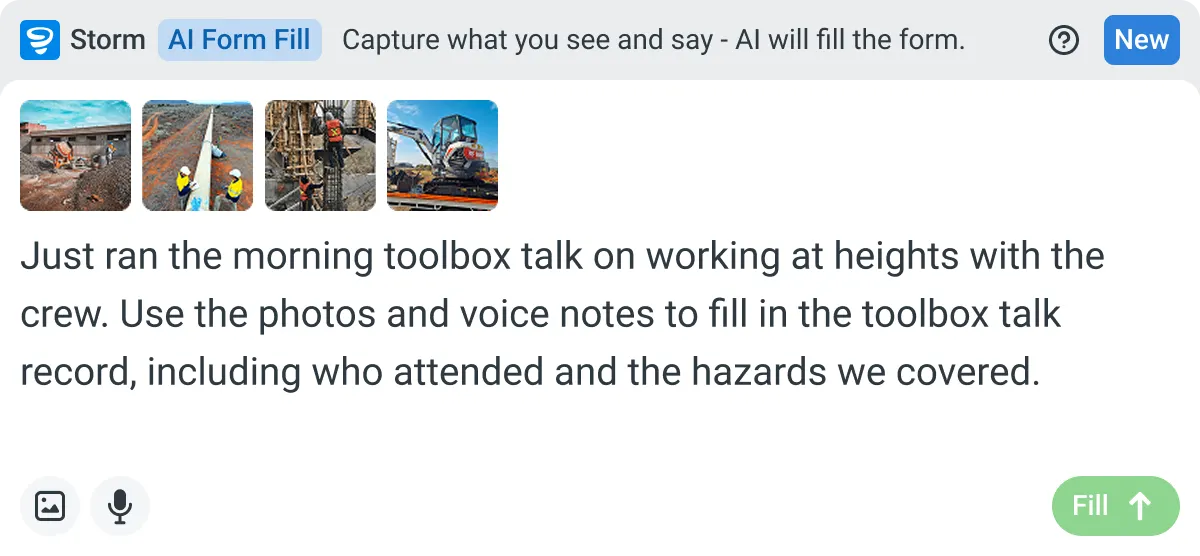

Listens to the work
Captures voice cleanly through machinery, wind, and movement. Accents and trade language understood. No headset needed.

Works on site
Built for gloves, cabs, and screen protectors. Captures inputs offline and processes in the background. No waiting on the field.

You stay in control
Storm never commits a record on its own. Every output is a draft for human review. Admins control what Storm can write to.
Frequently Asked Questions
Can Copilot sign off a RAMS as compliant?

No. It reviews the document and flags gaps. Whether a control is adequate, and whether the RAMS is signed off, is a competent person’s call. The review makes that call better informed, it doesn’t replace it.
Does it read the site, or just the document?
Just the document. It checks what the RAMS says against what a good one should contain. It doesn’t know what’s actually on site, so your own read of the ground still runs.
Can I check a RAMS against our own standard?
Yes. Give Copilot your template or client standard alongside the RAMS and ask it to list what’s missing against it, rather than reviewing in the abstract.
Will it catch everything?
No, and you shouldn’t run it as if it will. It’s a fast first pass that catches the common gaps, hazards with no control, generic text, missing scoring. Your review still runs on top of it.
Does this work with the other assistants as well?
Yes. The same approach holds whichever assistant your team uses, and the Sitemate connection supports Claude, ChatGPT and Microsoft Copilot.
Where does the reviewed RAMS end up?
Run and signed on site, then stored in Dashpivot as the record with Storm. The review sits alongside the RAMS it checked, so the gaps you found and the signed document stay together.
 English (United States)
  English (Australia)
  English (UK)
  English (New Zealand)
  English (South Africa)
  German