How to use Claude to draft RAMS
A Risk Assessment Method Statement (RAMS) is necessary in all industries, particularly high-risk ones such as construction. This document is essential to verify that safety measures are taken for each step in every activity. However, constructing a RAMS using conventional methods is labor-intensive. RAMS for activities with several steps will require several pages. Creating one would need a significant amount of time and resources. In addition, specific steps contain recurring risks and controls that must be retyped. Technology has provided a tool that can simplify the process of making and completing a RAMS. AI tools, such as Claude, can make a workable RAMS draft in a few minutes. Users only need to describe the specifics of the task in the prompt, and Claude can provide a RAMS, complete with hazards, possible risk scores, suggested safety measures, and a method statement. Safety managers will only need to review the RAMS and tighten it further to make it an official RAMS document.

Trusted by companies, projects and teams of all sizes


The short answer
Provide Claude with the work, site, and crew details, and it will develop a draft RAMS that includes risks, risk scores, suggested safety measures, and a method statement. However, safety managers should review the document before accepting it to verify that there are no gaps, particularly in the required safety measures. Users can also reuse the prompt by modifying the activity characteristics.
How to get Claude drafting your RAMS
A good RAMS draft from Claude doesn't need a long prompt. It comes down to giving it the specifics of the task, telling it the structure a RAMS needs, and tightening what comes back. Once that works, the pattern's reusable, and only the work changes from one RAMS to the next.
-
Step 1
Give Claude the task and the site
How specific the draft is depends on what you give Claude. Tell it the task, the location, the crew and the plant, plus anything unusual about the job, like work at height, a confined space or a live road next to the work. A RAMS for cutting a chase in a load-bearing wall comes back far more specific than one asked for in general terms.
- The task, and the risk that comes with it
- The site and crew, so the controls fit
- Plant, access and any permits involved
- Anything unusual about this job
-
Step 2
Tell it the shape a RAMS needs
Left unguided, Claude writes a RAMS as flowing prose. Tell it the sections you need: hazards, risk scores, controls, a sequenced method and a sign-on line. Match them to the RAMS template your client already accepts, and the draft drops straight into it.
- Task-specific hazards, drawn from the actual work
- A risk score and residual risk for each hazard
- Controls linked to the hazard they address
- Method steps in the order the work happens
- A sign-on block for the crew
-
Step 3
Tighten it to the site
Treat the first draft as a starting point. Strip out anything generic and add the hazard that's actually on site right now. Then check the method against how your crew really does the work. It takes a few minutes, and it's what makes the draft fit for the principal contractor to accept.
Prompt guidance for drafting RAMS with Claude
The prompt is the main thing worth building here. Write one drafting prompt you can reuse, and change only the task and the site each time. The more specific the work you describe, the less generic the RAMS, so always name the task and the plant, and say where the site is.
- "Draft a RAMS for replacing roof sheets on a two-level warehouse at [site]. The crew works from a scissor lift with sharp hand tools, near an overhead line on the northern boundary."
- "Draft a RAMS for welding a leaking water line in a confined space 6 feet high at [site], for a crew of [number]. Score each hazard using this matrix: [paste matrix]."
- "Write a RAMS for replacing the bearings on a 6x4 centrifugal pump used for overflow return at [site]. Lay out the method steps in the order the work happens."
- "Draft a RAMS for erecting scaffold for a bungalow repair near the beach at [site]. Flag the hazards that come with the location."
- "Draft a RAMS for powering a rotary-screw air compressor on and off, rated 7.5 to 550 hp, at [site]. Write it to [jurisdiction] standards."
Troubleshooting prompts for drafting RAMS
When a draft comes back weak, it's usually down to a thin prompt or a template that doesn't suit the job, and both are yours to fix. Work through these in order.
- Draft is too broad: the task has no location. Add where the work is and describe the setting.
- Hazards are missing: Claude doesn't know what's being used. Name the equipment and plant.
- Controls look thin: the draft needs a safety professional's input. Involve your competent person in the review.
- Wrong standards quoted: no jurisdiction given. State where the work is so Claude applies the right regional standards.
- Risk ratings look off: Claude has no matrix to score against. Add your risk matrix to the template first.
Limitations
While the use of Claude helps users draft the RAMS, it has limitations on what it can do. These limitations affect the results of the prompt, so reviewing the drafted RAMS is essential.
What Claude does well here
Here are the things that Claude is capable of and can do without any problem:
- drafts from the user's prompts
- tailors the RAMS to the specified job
- suggests safety controls
- scores hazards using the matrix provided
- reworks the draft immediately on request
- outputs a Word or Excel document
What it does not do
These are the limitations of Claude and what users need to be vigilant about:
- doesn't know the site environment
- can't draft from actual site conditions
- can't guarantee safety measures are effective
- can't guarantee site or audit readiness
- can't sign off the RAMS
What this assumes you already do
This assumes your team already produces and signs RAMS as part of how it works. Claude drafts the document and nothing more, so you still need someone reviewing each one and a way of capturing the crew's sign-on. Both are working practice you should already have in place.
- A clear scope of works, broken into activities
- Project documents and site requirements to hand
- Hazards and control measures already identified
- Operative, tool and equipment details for the job
- The safety procedures and regulations that apply
Why use Claude to draft RAMS
A RAMS is not really difficult to make. However, making a RAMS traditionally involves many steps and requires a substantial amount of time and resources. Imagine starting from a master template with 70 pages and having to manually type all identified hazards and safety controls. As a result, companies would resort to just copy-pasting the RAMS, which compromises the needed measures of each specific activity. RAMS like these are usually rejected because of poor quality, which raises serious concerns for auditors.
Using modern methods, such as employing AI tools like Claude, can help create a RAMS draft in just a few minutes. Users would only need to provide the specifics of the activity in the prompt, and Claude can generate a RAMS tailored to that activity. Users would now only need to review the RAMS and continue to tighten it to fully fit the needed safety measures for the activity.
What a good RAMS contains
These are the criteria a principal contractor checks before accepting a RAMS. A good draft meets every one.
- Hazards considered at every phase of each activity
- A full risk assessment for every hazard identified
- Controls chosen by working down the hierarchy of control
- Every control written into the method, at the step it applies to
- Signed off by competent, qualified people before work starts
It's the morning of the job, the principal contractor won't let the crew on site without a signed RAMS, and the one you have is a generic master that doesn't mention the work. Written from scratch now, it holds everyone up. Drafted in minutes and tightened, it doesn't.
What people actually run through Claude
Every named job customers ran through Claude against their own Sitemate data over six months. Timesheets, site diaries and plant records lead, and Claude carries almost all of the scheduled automation in the dataset.
Teams reach for the assistant on the documents they repeat
Teams use assistants most on the documents they produce again and again, like daily diaries, timesheets and inspections. Each one is structured and repeated, with details that change every time. A RAMS fits that pattern closely, which makes drafting one a strong use for Claude.
Connecting Sitemate MCP to Claude
There are three steps, and the first happens outside Claude: an Org Controller turns on MCP access in Dashpivot. The connector won't authenticate until that's done.
-
Step 1
Turn on MCP access in Dashpivot
An Org Controller goes to Settings > Security in Dashpivot, sets the MCP Access toggle to anything other than None and saves the changes. Until then, the connector won't authenticate.
-
Step 2
Add the Sitemate connector in Claude
In Claude, go to Settings > Connectors, click Add, then Browse connectors. Search for Sitemate and choose the connector tagged Community. Click Connect, sign in with your Sitemate credentials and approve access when prompted.
-
Step 3
Pick it in a chat
Start a new chat, click the plus button, open Connectors and select Sitemate. Claude can only reach what your Dashpivot permissions already allow, so connecting it doesn't widen anyone's access.
If the connector will not appear
Three causes account for most failed connections. The first one on this list is the most common.
- Nothing connects: MCP Access is still off in Dashpivot, and only an Org Controller can turn it on
- Sitemate isn't in the list: search for "Sitemate" exactly and look for the Community tag
- It's not showing in a chat: start a new chat, click the plus button and pick Sitemate under Connectors
How the record gets captured
Claude drafts the RAMS. Signing and storage happen in Dashpivot by Sitemate, where the draft becomes a form the crew signs. That signed record matters as much as the draft does.
-
Storm imports the draft, then captures it on site
Save the draft out of Claude as a PDF, Word or Excel file, and Storm rebuilds it as a Dashpivot template with AI Templates. On site, the RAMS is run and signed on a phone or tablet, with the crew's sign-on attached. No emailing documents around and chasing signatures afterwards.
-
Dashpivot holds it as the record
Dashpivot stores each RAMS against its job as a structured, versioned record that's ready for audit. Nobody has to dig the signed copy out of someone's inbox.
-
Sitemate MCP reads it back
Sitemate MCP lets Claude read your RAMS back. Ask which jobs have a signed RAMS and which crews signed on, or what's still missing. Your user permissions in Dashpivot still apply to everything it reads.

Storm captures the RAMS Claude drafts
The RAMS gets run with the crew on site and each operative signs on there and then, with Storm capturing it as it happens. Nobody has to go looking for the signed copy afterwards.

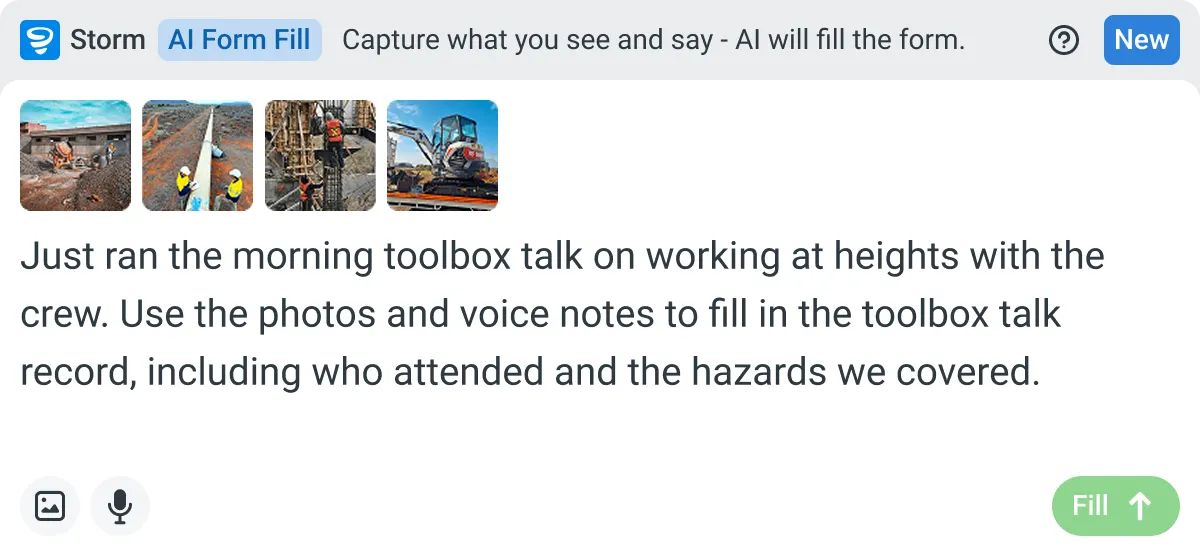
AI Form Fill
Capture what you see and say, and Storm drafts the form for you. The details land in the right fields, so there is a record to check the moment the work is done, and you review and submit it yourself.


Listens to the work
Captures voice cleanly through machinery, wind, and movement. Accents and trade language understood. No headset needed.

Works on site
Built for gloves, cabs, and screen protectors. Captures inputs offline and processes in the background. No waiting on the field.

You stay in control
Storm never commits a record on its own. Every output is a draft for human review. Admins control what Storm can write to.
Frequently Asked Questions
How does Claude identify hazards?

Claude will identify hazards based on what information the user prompts. However, it must be noted that giving a generic prompt will generate a vague RAMS. Users must specify the task, site, equipment involved, and other important aspects of the activity.
Will the RAMS generated from Claude be directly usable?
While Claude provides a reasonable draft, it would still be important to conduct a thorough review of the generated RAMS. Reviewing the RAMS can help cut generic content, add real on-site hazards, and ensure a competent person signs off on them.
Can Claude use our template?
Yes. Users can upload their existing RAMS template and ask Claude to fill it out based on the prompt the user provides.
Where are RAMS in Dashpivot signed and stored?
Users can sign RAMS directly in the field. The RAMS is stored in a cloud storage location and will also be distributed directly to personnel who need to be notified.
How is the completed RAMS template distributed?
The Dashpivot platform allows users to modify notifications and send completed forms to relevant personnel who need the RAMS. Once the crew signs a RAMS on site, Storm automatically sends it to relevant stakeholders. Additionally, these completed forms are already versioned and audit-ready.
Why do we need a competent person to review the RAMS?
Reviewing the RAMS requires a competent person because these personnel have sufficient knowledge when it comes to providing effective and adequate measures to fully control hazards.