HazardCo Alternative for SWMS
HazardCo is popular with home builders and tradies across Australia and New Zealand. It covers Safe Work Method Statements (SWMS), toolbox talks and site sign-in, and there's an advisory team you can call. If your business is starting to outgrow its templates, here's how it stacks up against Dashpivot by Sitemate.

Trusted by companies, projects and teams of all sizes


The short answer
Dashpivot by Sitemate is the HazardCo alternative for SWMS if you want them in your own format, sitting right next to your inspections, quality checks and site records. If you're a small builder who likes the guided templates or relies on HazardCo's phone advice, it probably makes sense to stay.
What HazardCo Is Built For
HazardCo is a health and safety system made for home builders and tradies in Australia and New Zealand. Its goal is to make safety simple for small businesses. You follow guided templates, generate a site-specific safety plan, sign people in with a QR code, and call the advisory team when you need help.
- Guided SWMS templates
- Guided toolbox talks
- Site-specific safety plans
- QR code sign-in
- Incident reporting
- Phone advice from an H&S advisory team
Why Teams Look for an Alternative
HazardCo works for a small builder. As the business grows, the fixed templates start to feel tight, and safety ends up in one app while inspections, quality and site reports live somewhere else. Before long, your signed SWMS are spread across several places.
- Fixed templates you can't shape around how you work
- Safety kept separate from quality, inspections and site records
- More apps to manage
- A membership model built for small operators, not your own system
The builder's got one app for the SWMS, another for inspections and a spreadsheet for the rest, and nobody's sure which one holds the signed copy.
What Dashpivot by Sitemate Is Built For
Dashpivot by Sitemate is a field system for building and signing off documents like SWMS, and for keeping the record afterwards. The SWMS is set up once in your own format and signed by the crew on site, then stored beside the rest of your site records.
- Your own SWMS format: from the template library or AI Templates
- Storm: Sitemate's data capture agent, which builds the template from an uploaded SWMS or a description, for you to check
- On-site sign-on: each worker recorded against the version they used
- One system: safety, quality and field reporting, with SWMS beside inspections and the site diary
- One register: every job and subbie, versioned with a full audit trail

Build and Sign SWMS in Dashpivot
Your crew fills in the SWMS as a Dashpivot form on the Sitemate Mobile App, in the format you already use. Each worker signs on the device and the record stays in your account.
Safe Work Method Statement App
Build the SWMS once from your own format, or have Storm draft the template with AI Templates. The crew signs onto it on site, and a supervisor checks and signs it off before work starts.


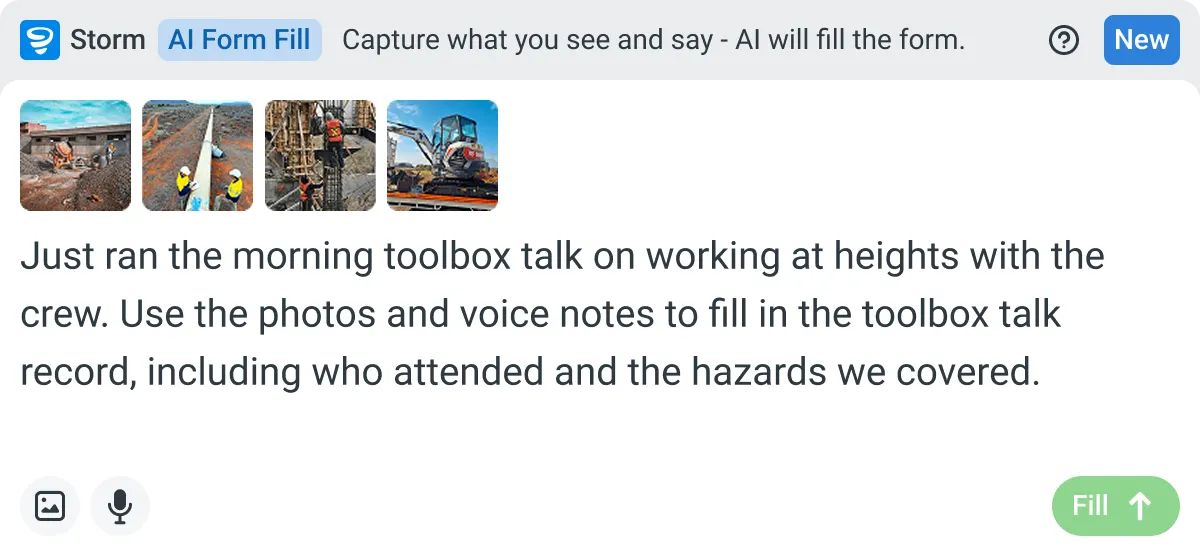
AI Form Fill
Capture what you see and say, and Storm drafts the form for you. The details land in the right fields, so there is a record to check the moment the work is done, and you review and submit it yourself.
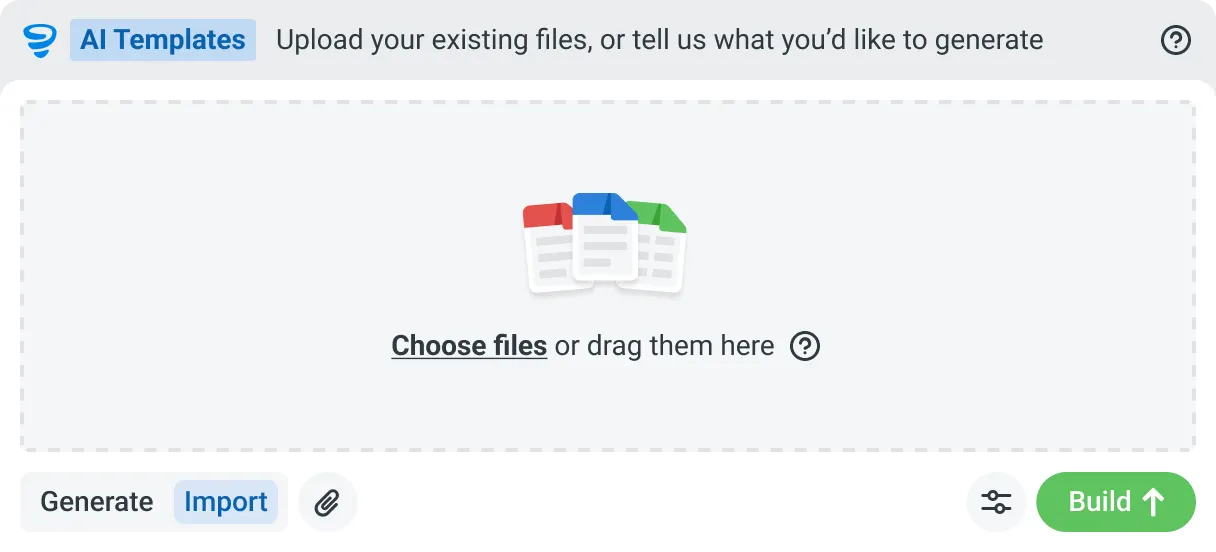
AI Templates
Describe the template you need in plain language, or upload an existing PDF, Word or Excel document. Storm builds the structure, with the right fields, sections, columns and workflow attached, and you review and refine it before you save.
How Dashpivot Runs a SWMS
It's three steps. You set the SWMS up once in Dashpivot and the crew completes it on the Sitemate Mobile App. The signed record files back into your own account.
-
Step 1
Get the Template
You don't start from a blank page. The SWMS template you already use becomes a Dashpivot form for the crew to sign, set up once in its existing format.
- Template library: start from a standard SWMS
- AI Templates: Storm builds the template from your PDF, Word or Excel SWMS, or from a description of the work
- Dashpivot editor: build it yourself, with photo, signature and location fields
-
Step 2
Run the SWMS and Sign On
Before work starts, the supervisor walks the crew through the SWMS on the Sitemate Mobile App. Any change made on site goes on the form instead of the margins of a printout.
- The crew signs on the device, with signatures on the form itself
- Site-specific controls added on the phone when the template didn't cover something
- Photos attached to the job step they relate to
- Works offline, so remote sites with no signal still end up with a signed SWMS
- Storm, if you want it: describe conditions by voice or photo and Storm fills the fields with AI Form Fill, then the supervisor checks before signing
-
Step 3
Keep the Record
The signed SWMS is filed against the job in your own Dashpivot account. It shows who signed what, ready for a principal contractor or the regulator.
- Every version of the SWMS, kept
- Which version each worker signed
- An audit trail of who edited it and who signed off
- A PDF export for the principal contractor, who doesn't need an account
What Dashpivot Doesn't Replace
Dashpivot runs your SWMS and keeps the record. It doesn't judge whether your controls are adequate, and it isn't a legal sign-off. Your competent person checks the SWMS against the work and signs it.
What Dashpivot Does for SWMS Today
Here's what you can do with SWMS in Dashpivot now.
- Build SWMS templates in your own format, with job steps, hazards, risk ratings and controls
- Let Storm draft the template with AI Templates, then review and edit it
- Get the crew signed on site from any device, signal or not
- Save a master SWMS as an account template so every project uses the same version
- Keep every SWMS versioned in one register, ready for audit
Where Dashpivot Stops
Dashpivot is software, not a safety consultancy. The last item here is something HazardCo includes.
- Judging whether controls are adequate, which is the competent person's call
- Giving legal or regulatory sign-off on a SWMS
- A phone advisory team for H&S questions
Dashpivot by Sitemate vs HazardCo for SWMS
Both put your SWMS on a device and keep the record. Here's where they differ, including the areas where HazardCo leads.
| Dashpivot by Sitemate | HazardCo | |
|---|---|---|
| Built around | Safety, quality and reporting in one system | Guided health and safety for home builders and tradies |
| SWMS templates | Your own format, the template library, or AI Templates | Guided templates with a fixed structure |
| Phone H&S advice | Not included | Included with the advisory team |
| Beyond safety | Quality, inspections and field reporting | Safety only, alongside other tools |
| Small builder setup | Set up once and reuse | Ready with very little setup |
| Best fit | Teams who want their own format next to their site records | Small builders and tradies who want minimal setup |
Where HazardCo and Dashpivot Differ for SWMS
Both get your SWMS off paper and record who signed. The difference is whose format you're working in, and whether the SWMS sits with the rest of your site work.
- Your own SWMS format. Dashpivot follows the system you already use and changes as your business does. HazardCo's guided templates keep a set structure.
- One system beyond safety. Inspections, quality and site reports sit alongside the SWMS, so you're not switching between apps.
- Phone advice is HazardCo's strength. Its advisory team takes your calls. Dashpivot doesn't offer an advisory service.
- Storm drafts the template with AI Templates. Describe the work or upload your current SWMS, and the supervisor approves the draft before it's used.
Where HazardCo Is the Better Choice
If you're a small builder or tradie who wants safety sorted with as little setup as possible, and you value having someone to call, HazardCo is a good fit. That's exactly who it's built for.
- You want guided templates that are ready to go
- You want an H&S advisory team on the phone
- Your paperwork is all safety, so you don't need a broader system
How Teams Move From HazardCo
Nobody moves off HazardCo all at once, and the first step is deciding whether to move at all. Most teams that do start with the SWMS, then bring across inspections and other site records.
-
Step 1
Decide
Stay on HazardCo if its guided templates already fit how you work, or if you rely on its advisory team. Move if you want SWMS in your own format, kept alongside your site records.
-
Step 2
Convert
Upload your current SWMS as a PDF, Word or Excel file and Storm rebuilds it as a Dashpivot template with AI Templates. Check the job steps and controls before anyone uses it.
-
Step 3
Pilot
Pilot with one crew on one job. HazardCo keeps running in parallel, and nothing gets switched off while you test.
-
Step 4
Roll Out
Once a crew has signed a live SWMS end to end, save it as an account template and add the remaining jobs. From the first one, every SWMS sits in the one register.
Frequently Asked Questions
Is it HazardCo or Hazard Co?

It’s HazardCo, written as one word. People search for it both ways, but it’s the same product.
Is Dashpivot a replacement for HazardCo?
Yes, for SWMS and your other site forms. The one thing it doesn’t replace is HazardCo’s phone advisory team, which is included in its price. If your team uses that service a lot, weigh it up before you switch.
Can we keep our own SWMS format?
Yes. Upload your current SWMS as a PDF, Word or Excel file and Storm rebuilds it as a Dashpivot template with AI Templates, keeping your structure. Check the job steps and controls before anyone uses it.
Can a worker add a site-specific control on the phone?
Yes. The SWMS is a live form in the Sitemate Mobile App, so a worker can add a control on site before the crew signs. The supervisor reviews it, and the change is saved against that version.
Where does the signed SWMS end up?
It’s filed against the job in your Dashpivot account, versioned, with every signature attached. It’s there whenever a principal contractor or regulator asks, and it stays yours after the project closes.