AI Tool for Creating Toolbox Talks
Toolbox talks are where directives and safety guidelines can be communicated to the crew before work begins. However, working conditions at construction sites can change dynamically and today's job can differ from the last. AI tools can help write the first draft of your toolbox talk, all you need to do is input the description of that day's work and quickly check the draft before briefing the crew for any required revisions while the crew waits outside.

Trusted by companies, projects and teams of all sizes


The short answer
The AI tool only needs your input on descriptions on the day's job and it can draft a written toolbox talk in seconds complete with task descriptions, applicable hazards, the required safety controls, and other discussion points for the crew. The supervisor just needs to read and review the draft, add any site-specific issues, and sign-off on the toolbox talk form, if required.
How toolbox talks get made today
Picture this: it's 7 A.M., just before work, and the crew is already standing by for the toolbox talk. As nobody writes the talk from scratch, supervisors search for existing or old toolbox talks that dont really match today's tasks. Borrowed talks off of the internet have details of another company on the form, and free templates are too broad to cover anything specific for your site.
- Reuse last week's talk and just change the date
- Pull toolbox talk formats from previous jobs or from another company
- Search for free toolbox talk form templates online and hope that it matches your sepcific task
What an AI tool for toolbox talks does instead
An AI toolbox talk tool reads a description of the work and writes the talk around it. You say what the crew is doing today, where, and with what. It comes back with the task in plain words, the hazards that go with it, the controls that bring them down, and the discussion points to raise. It's a first draft of something you'd otherwise assemble by hand.
How to make a toolbox talk with AI
Three steps, from describing this morning's job to a signed talk in the crew's hands. Nothing here changes who decides what gets briefed: that stays with the supervisor running the talk.
-
Step 1
Describe today's job
Type what the crew is doing, say replacing handrail on level three with the edge protection off. Or bring the format you already run and keep your own sections and sign-on fields.
-
Step 2
Check it against the actual site
The draft comes back with the task, hazards and controls laid out. Walk it against what's in front of you: the weather, who else is working nearby, what changed overnight.
- What the crew is doing, in the words they use for it
- The hazards that apply to this job on this site
- The controls you have on the ground today
- The points worth stopping on, and who raises them
-
Step 3
Review and sign off
The supervisor checks each hazard, adds what's specific to this site, adjusts the controls, and signs before anyone starts. The draft saves the typing, not the decision.
Where to make one
Two routes, and which one you want depends on whether you need a talk for this morning or a template your supervisors run every time, filed and reportable.
- Toolbox Generator is free and unlimited, with no sign-up. Describe the job, get a toolbox talk back in seconds and take it away as a document. It records nothing after that
- The Toolbox Talk app makes that same talk a live form in Dashpivot. Storm drafts it, the crew signs on from any device, and every talk is filed against the site and date and feeds your reporting
How to prompt an AI toolbox talk generator
The difference between a talk you can brief and one you delete is length. Across our own generator data, prompts under ten words produce a usable document 15% of the time. At twenty words or more it's 62%. The extra words are the site.
- "Toolbox talk for replacing handrail on level three of a car park, edge protection coming off in sections, wind picking up through the afternoon."
- "Toolbox talk for a confined space entry into an underground stormwater pipe, gas testing and a standby person, two apprentices on their first entry."
- "Toolbox talk for hot works on a live process line, welding and grinding beside running plant, isolation permit already issued and a fire watch posted."
- "Toolbox talk for craning air conditioning units onto a school roof over a weekend, exclusion zone across the car park, no students on site."
When the generated toolbox talk misses the mark
Most of the time a thin talk traces back to a thin prompt, and the fix is one more sentence rather than a different tool. The rest is the form template it's built on: if the fields aren't there, nothing fills them.
- It reads like any other talk: the prompt named the task but not the site or the conditions
- The hazards are missing: the equipment and the work going on nearby weren't named
- It cites the wrong standard: no jurisdiction in the prompt
- Nobody is recorded as attending: the template has no sign-on field to fill
- What the crew raised is lost: no photo or comment field on the form
- It repeats last week: the prompt described the job in general, not today's version of it
Limitations
The generated toolbox talk is only a first draft that relies solely on the prompts and descriptions that you input. The tool itself warns that supervisors must check the draft documents before use.
The tool doesn't know your specific job site, your crew, or any changes at the site that ocurr overnight. It will always need human review and verification before the toolbox talk is ready for discussion with the crew.
What it can do today
Pulling insights from even short descriptions and prompts, it can write comprehensive toolbox talks in seconds.
- Drafts comprehensive toolbox talk from job descriptions in seconds
- Pulls formatting and wording from existing toolbox talks, if supplied
- Covers task descriptions, possible hazards, appropriate safety controls, and discussion points
- Produces a printable document or softcopy you can take on your talk
What it cannot do
It doesn't see your site or evaluate actual conditions or your crew. The output is should only be treated as a draft, and not the final briefing.
- See the site itself
- Know the capabilities or competencies of your crew
- Judge whether a safety control is truly adequate for your specific site
What a good toolbox talk contains
You can tell a real toolbox talk from a generic one in about ten seconds. The real one names the job in front of the crew this morning, not the trade in general. It lists the hazards that apply on this site and the controls you've genuinely got, and it reads like something a person would say out loud rather than a document written to be filed. Then it carries the names of the people who were briefed.
- Specific to the task the crew is doing today
- Written for this site, not carried over from the last one
- Names the real hazards and the controls you actually have
- Reads like it's meant to be spoken, not filed
- Signed on by the crew who were briefed
What to look for in an AI tool for toolbox talks
Most of these tools produce something readable, so that isn't the test. What separates them is whether the talk survives contact with the site: whether you can keep your own format, whether it works where there's no signal, and whether anything is left over once the talk is done.
- Takes the toolbox talk format you already run
- Works on site with no signal
- Records who attended, not just what was said
- Keeps the talk after sign-off, in one register
- Doesn't invent controls you don't have
What to avoid
The failure modes are all versions of the same thing: a document that looks finished and proves nothing. A talk nobody signed, or one that reads the same on every job, is worse than no talk at all when someone comes asking.
- Generic output that would suit any job
- No review step before the crew is briefed
- Output trapped as a PDF
- No record of who was in the talk
- No audit trail of who approved what
The crew's outside waiting, the job isn't quite the same as last week's, and the quickest thing to hand is last week's talk with today's date on it.
Longer prompts come back usable more often
Every request to our generators is a prompt someone typed in a hurry. Sorted by length, the short ones come back thin often enough to matter, and the gap is wider than most people expect.
The extra words are the site, not the document
A ten word prompt describes a document. A twenty word one describes a job: where it is, what's being used, who's working nearby, what has already gone wrong. That's the part a generator can't guess, and it's the part that makes a talk specific enough to brief.
How to generate and run a toolbox talk with Storm
The generator hands you a document. This is what happens when the same talk lives in Dashpivot instead: it gets run, signed and filed without anyone typing it up afterwards.
-
Generate the toolbox talk
Describe the job or bring your own format, and Storm drafts the talk as a live form rather than a document you hold.
-
Fill it out on site
The crew signs on from any device, photos and comments attach as the talk happens, and it all works with no signal.
-
Sign it off and file it
The supervisor approves it before work starts, and it files itself against the site and date, ready for reporting.

Do toolbox talks with Storm in Dashpivot
Dashpivot makes the talk a live form: Storm drafts it, the crew signs on at the talk, and every briefing is filed against the site and ready for an audit.

AI Templates
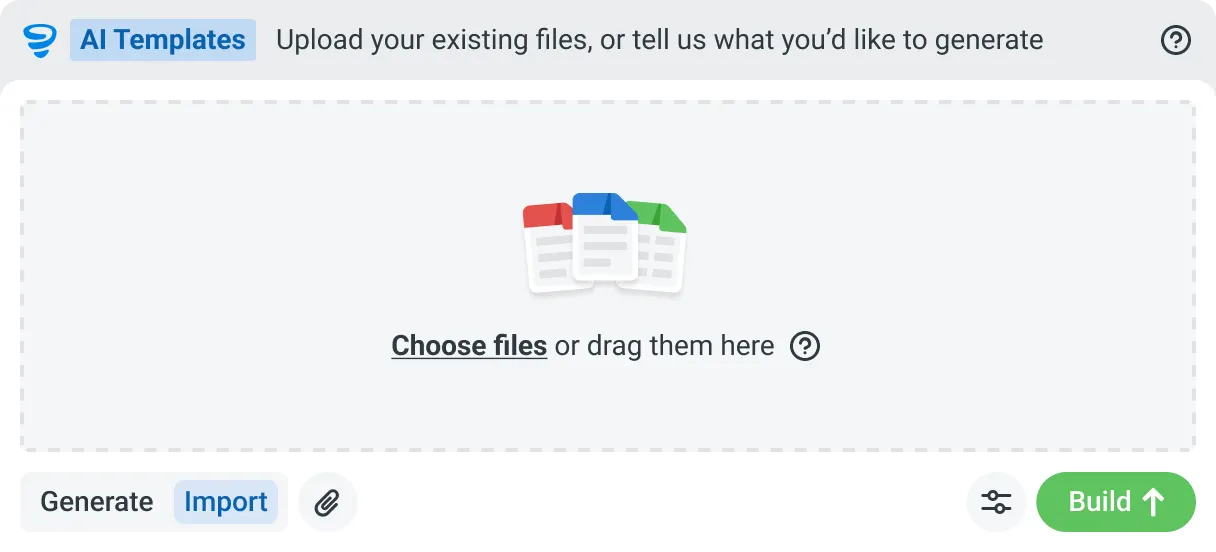
Describe the template you need in plain language, or upload an existing PDF, Word or Excel document. Storm builds the structure, with the right fields, sections, columns and workflow attached, and you review and refine it before you save.


Speaks built-world
Purpose-trained on real built-world documents. Knows a JSA from a method statement, an ITP from an inspection.

You stay in control
Storm never commits a record on its own. Every output is a draft for human review. Admins control what Storm can write to.

Works on site
Built for gloves, cabs, and screen protectors. Captures inputs offline and processes in the background. No waiting on the field.
Frequently Asked Questions
Can the whole crew sign on to the talk on their own phones?

Yes, as the toolbox talk is documented on a digital form, each worker can sign in on their own mobile device via QR scan. Attendance and sign-on forms part of the record so no separate, typed-up attendance sheet is needed.
Can we keep the toolbox talk format we already run?
Yes, you can absolutely use your existing format. This means keeping your own sections, wordings, and sign-off fields so the crew sees a familiar toolbox talk format. While the creation and documentation of the talk is automated, the briefing and delivery of the talk itself is unchanged.
Does it work where there's no signal?
Yes, the Dashpivot app supports full offline work, making it usable at sites where connection can be unreliable. It saves all your work and re-syncs your changes once internet connection is found and restored.
Is a generated toolbox talk good enough to brief from?
You should always treat the generated toolbox talk as a first draft only, and verify the generated guidelines with actual, on-site conditions. The supervisor must always read the draft, add any specific site issues, and sign-off on it before work starts.